
ScreenshotLesson 17 of 61
Keep editing an AI sign, piece by piece
After you click Use this, the AI sign is placed on the artboard at real size as separate pieces, not grouped. Text can still be retyped, and shapes and colors can be edited piece by piece. The pieces are split into layers by job, such as print, engraving, LED and cut lines.
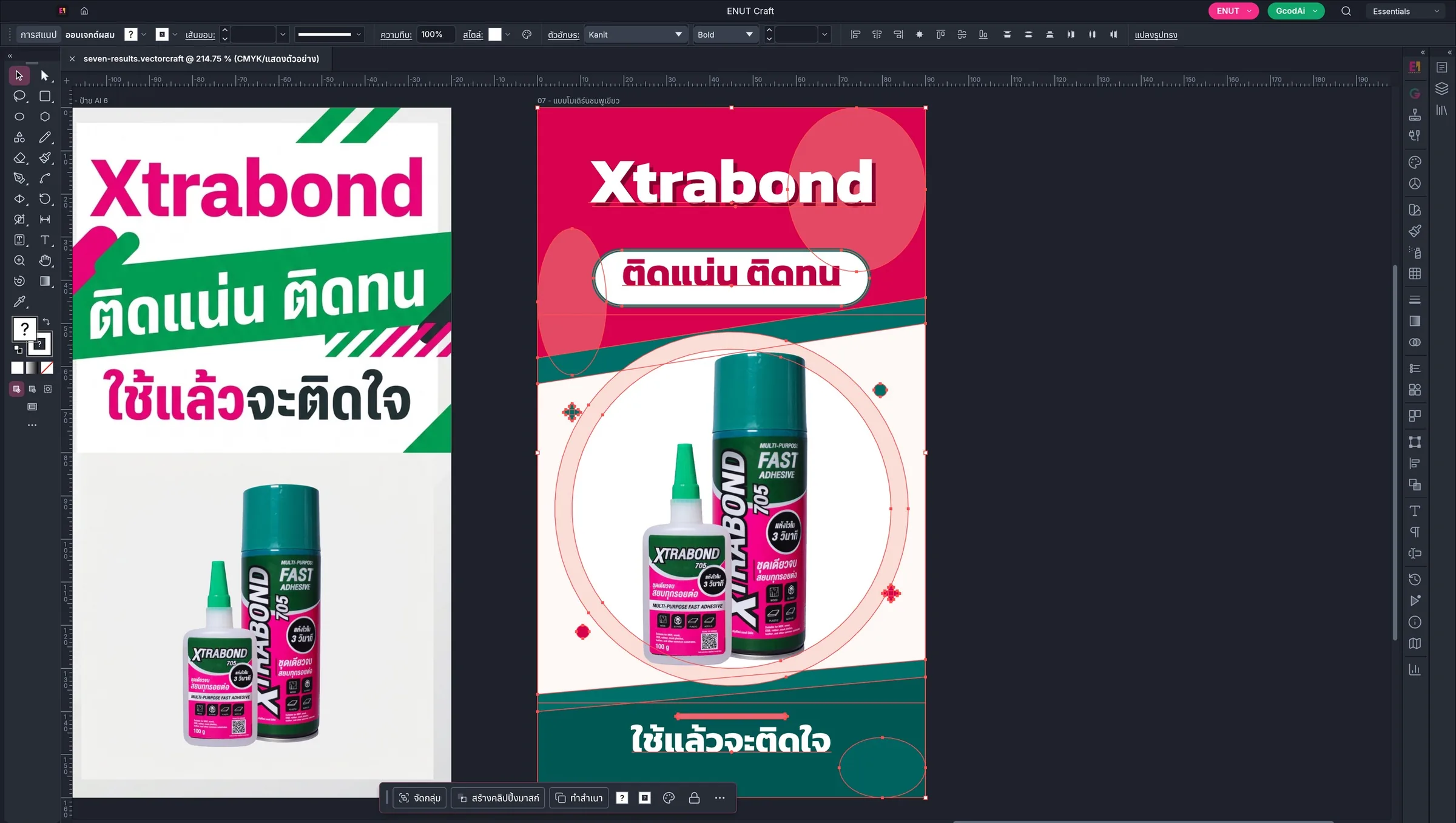
Steps
After you click Use this, all the pieces are selected and were placed in a single step. Press ⌘ Cmd + Z (Windows Ctrl + Z) once to take it all back.
If the artboard already has work on it, the new design goes onto a new artboard to the right.
Open Window › Layer and you will see the pieces split into the layers Print Engraving LED Crop Marks (only the layers that design uses).
To edit text: use the Type Tool, click the text and type the new words.
To change a color or move something: use the Direct Selection Tool and click the piece you want. The sign's background is the piece named Background.
Pictures in the design sit inside frames (clipping masks). You can move or resize the picture inside its frame.
If the design is a picture and its resolution is low for the sign size, the program warns you and gives you an AI Upscale… button so you can click it right away.