ScreenshotLesson 32 of 61
Continuous Die-Cut in One Line, and Contour Cut
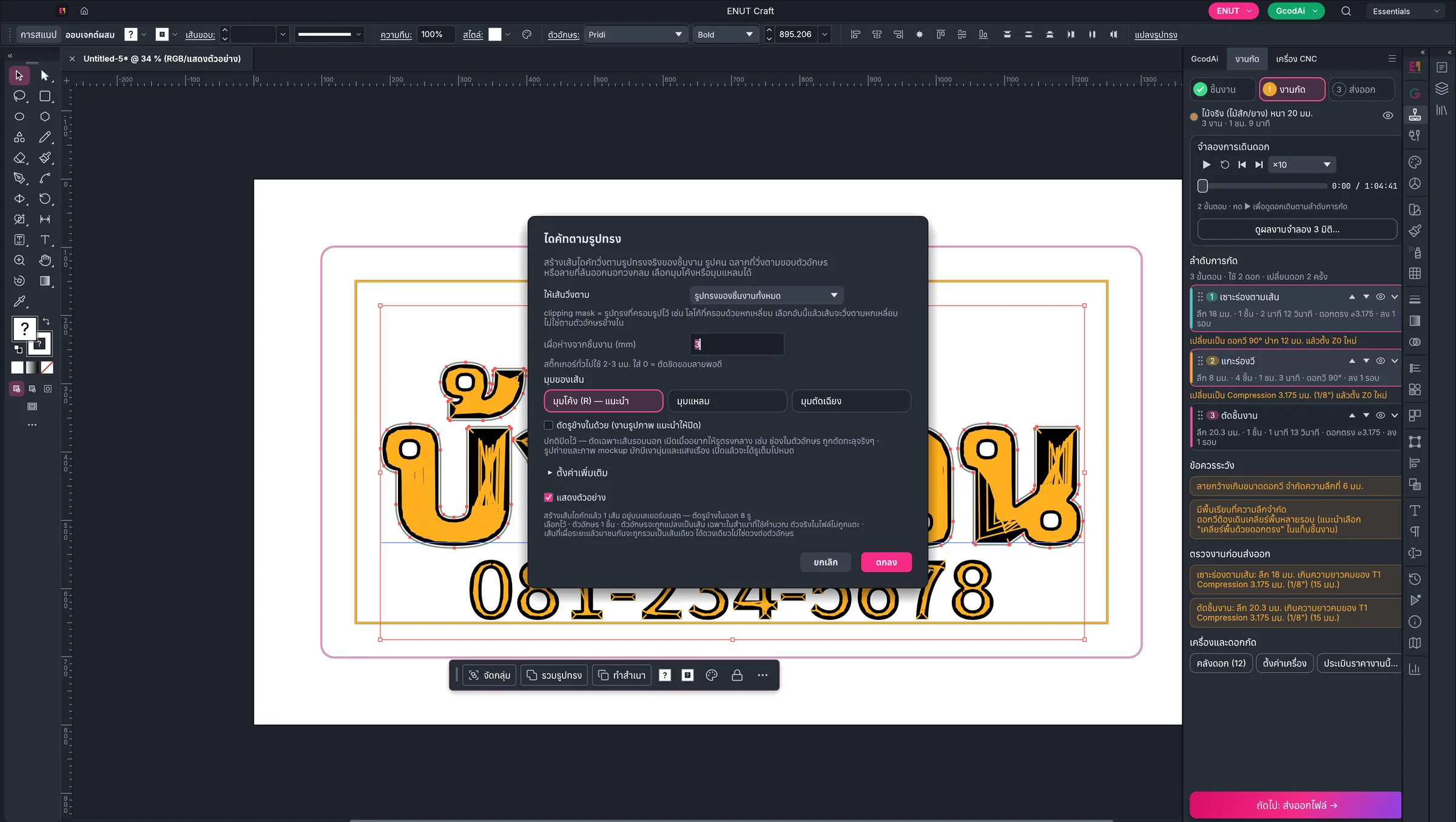
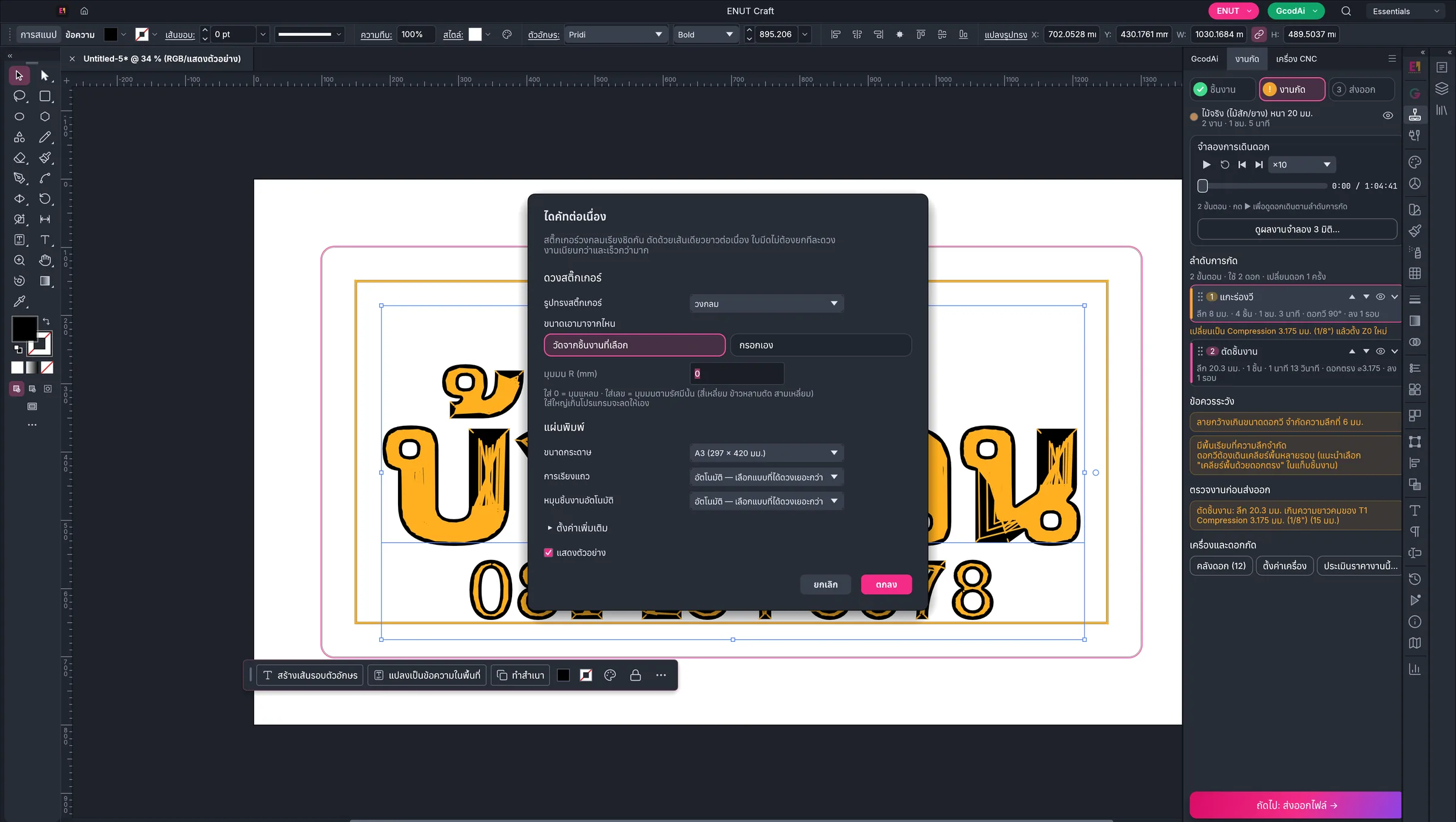
Continuous die-cut packs the stickers edge to edge and cuts them with one long line, so the blade doesn't lift for each one. Contour cut makes a cut line that follows the real edge of your artwork, with an offset, and you choose rounded or sharp corners.
Steps
Continuous die-cut: open ENUT › Continuous Die-cut…
Choose the Sticker shape, such as circle, oval, rectangle or hexagon, then set Where the size comes from: measured from the selected artwork, or typed in by hand
Choose the Paper and the Row layout, then click OK
Contour cut: select the artwork, then open ENUT › Contour Cut…
Set the Offset from the artwork and choose the Corners, such as rounded corners (R), which is recommended, or sharp corners
For picture artwork, turn off Cut Inside Holes Too, then click OK
Screenshots in this lesson