ScreenshotLesson 44 of 61
Running Numbers, and Copy to All Artboards
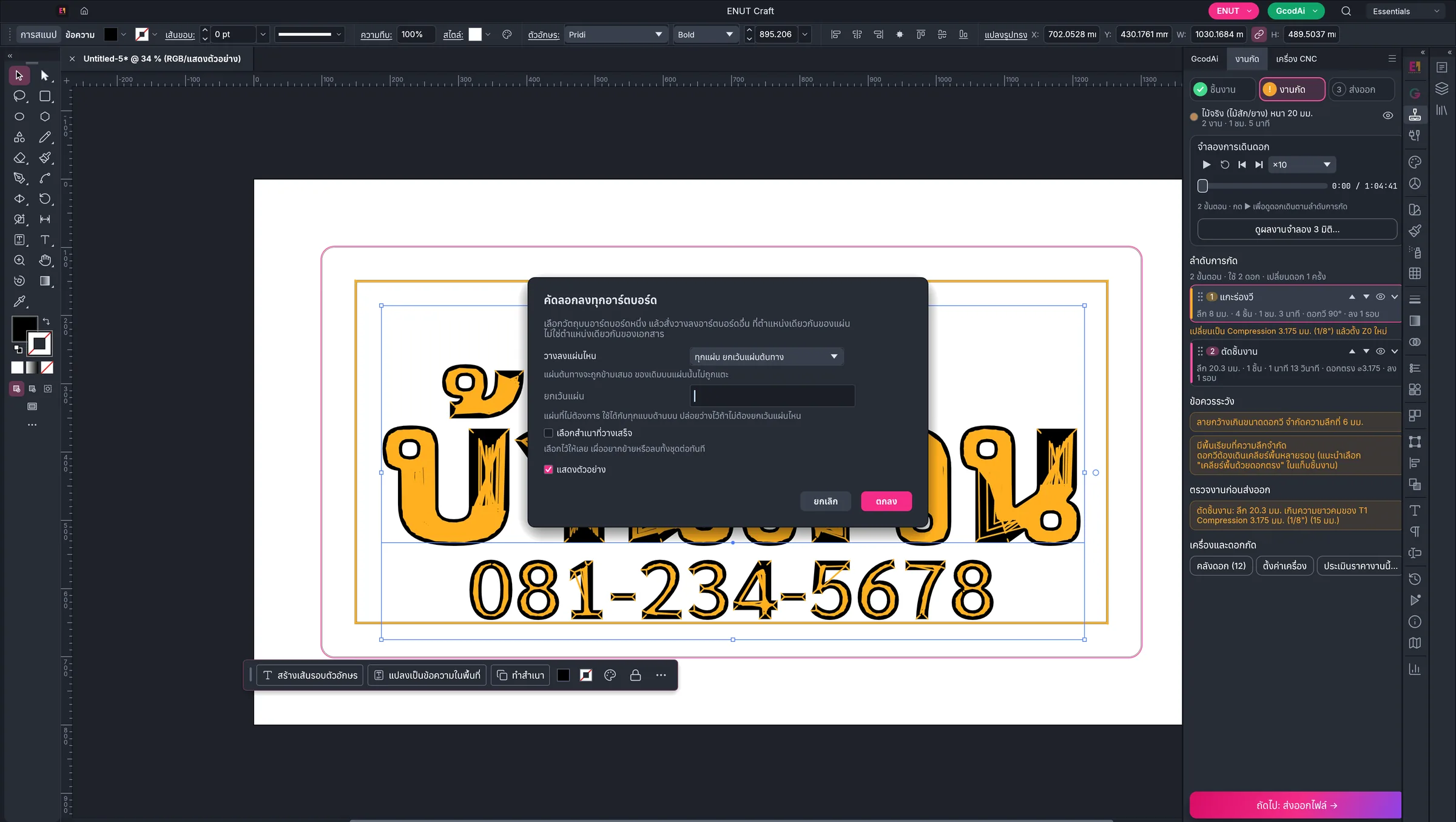
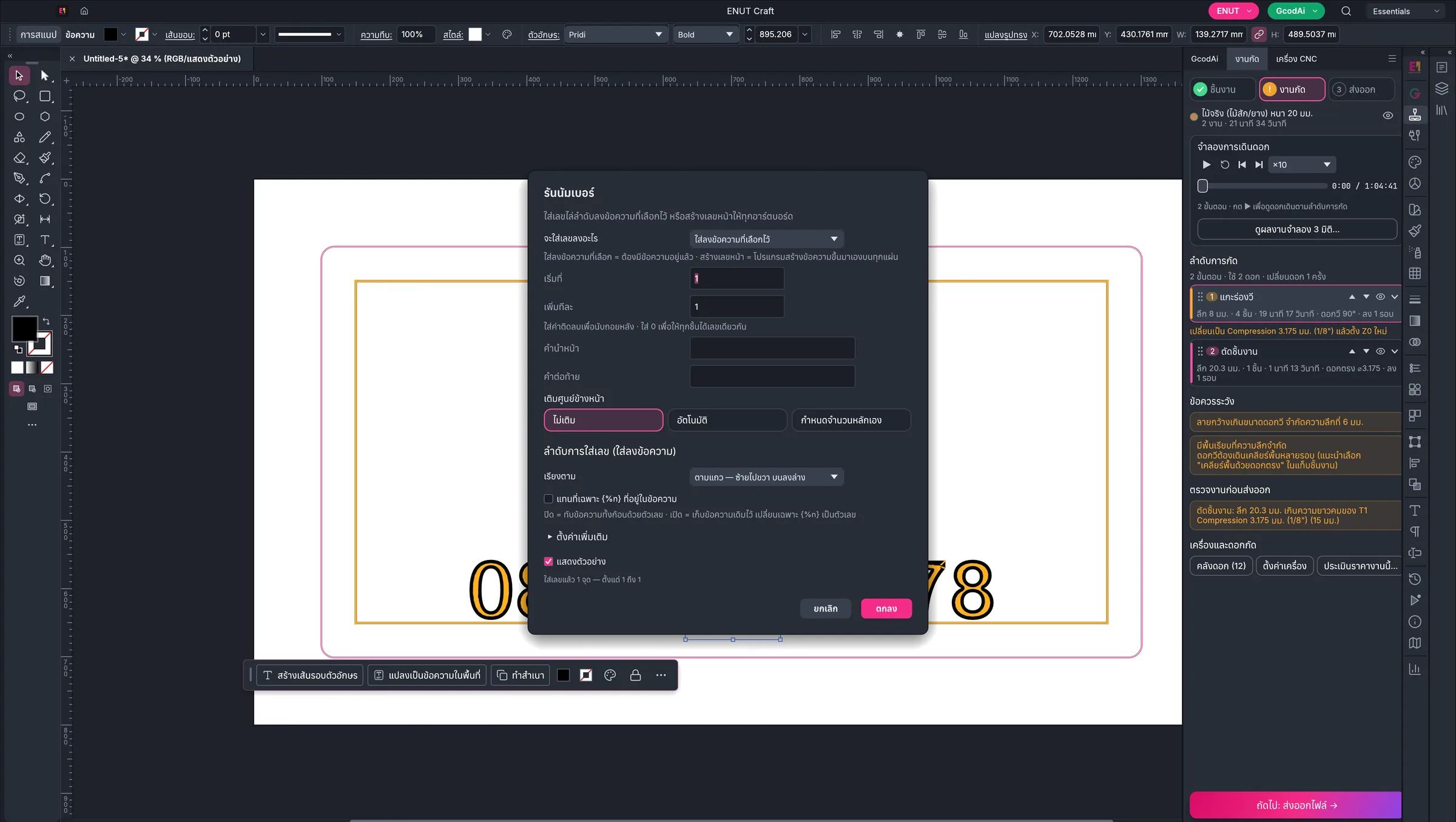
ENUT › Running Numbers… puts sequential numbers into the selected text, or makes a page number for every artboard. ENUT › Copy to All Artboards… copies your artwork onto the other artboards at the same position on the sheet, in one command.
Steps
Select the text that will get numbers, then open ENUT › Running Numbers…
Under What to number, choose the selected text, or make page numbers for the artboards
Set Start at, Step by, Prefix, Suffix and Pad with leading zeros (for example, to get 001), then click OK
Copy to all artboards: select the artwork on one artboard, then open ENUT › Copy to All Artboards…
Under Which artboards, choose all of them, odd ones only, even ones only, or pick your own, then click OK
Screenshots in this lesson