
ClipLesson 61 of 61
Connect ENUT Craft to AI (Claude, ChatGPT, Codex, Cursor) Through MCP
Open ENUT › AI Connect…, turn on the switch, then add enut-craft to the AI program you use: Claude Desktop, Claude Code, ChatGPT / Codex or Cursor. After that you can give orders in Thai, such as making a lettering sign, pricing, laying out LED, unrolling sides and nesting pieces. The AI and ENUT Craft talk to each other only on your own computer.
Tutorial clip 2:28 (narrated in Thai) Watch on YouTube
Steps
Open ENUT › AI Connect… (or type AI Connect in the command search box on the top bar)
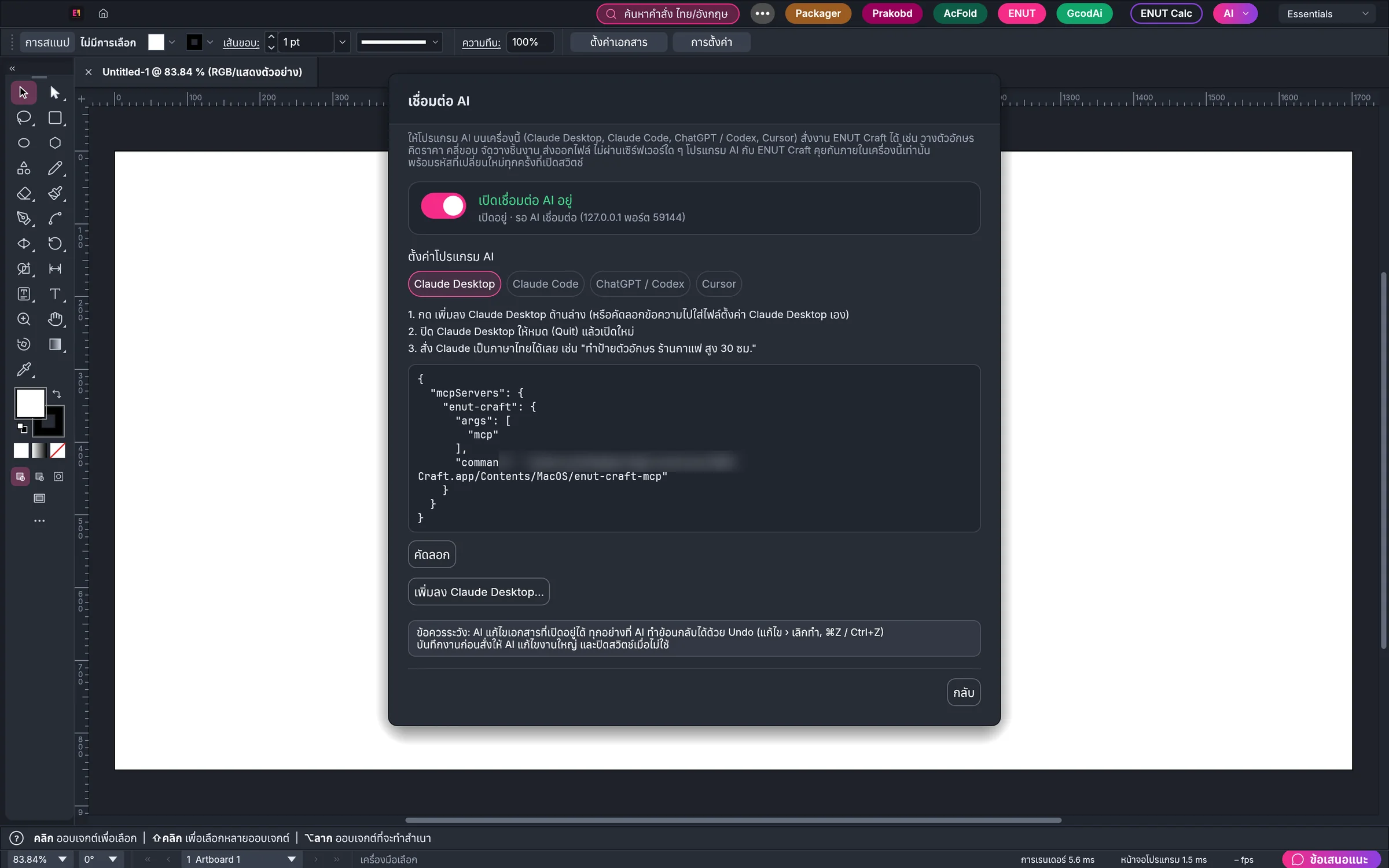
Turn on the AI Connect switch. The status says AI Connect is on and waits for an AI to connect
Claude Desktop: on the Claude Desktop tab, click Add to Claude Desktop…, read the text that will be added, then click Add it. Then quit Claude Desktop completely (Quit) and open it again
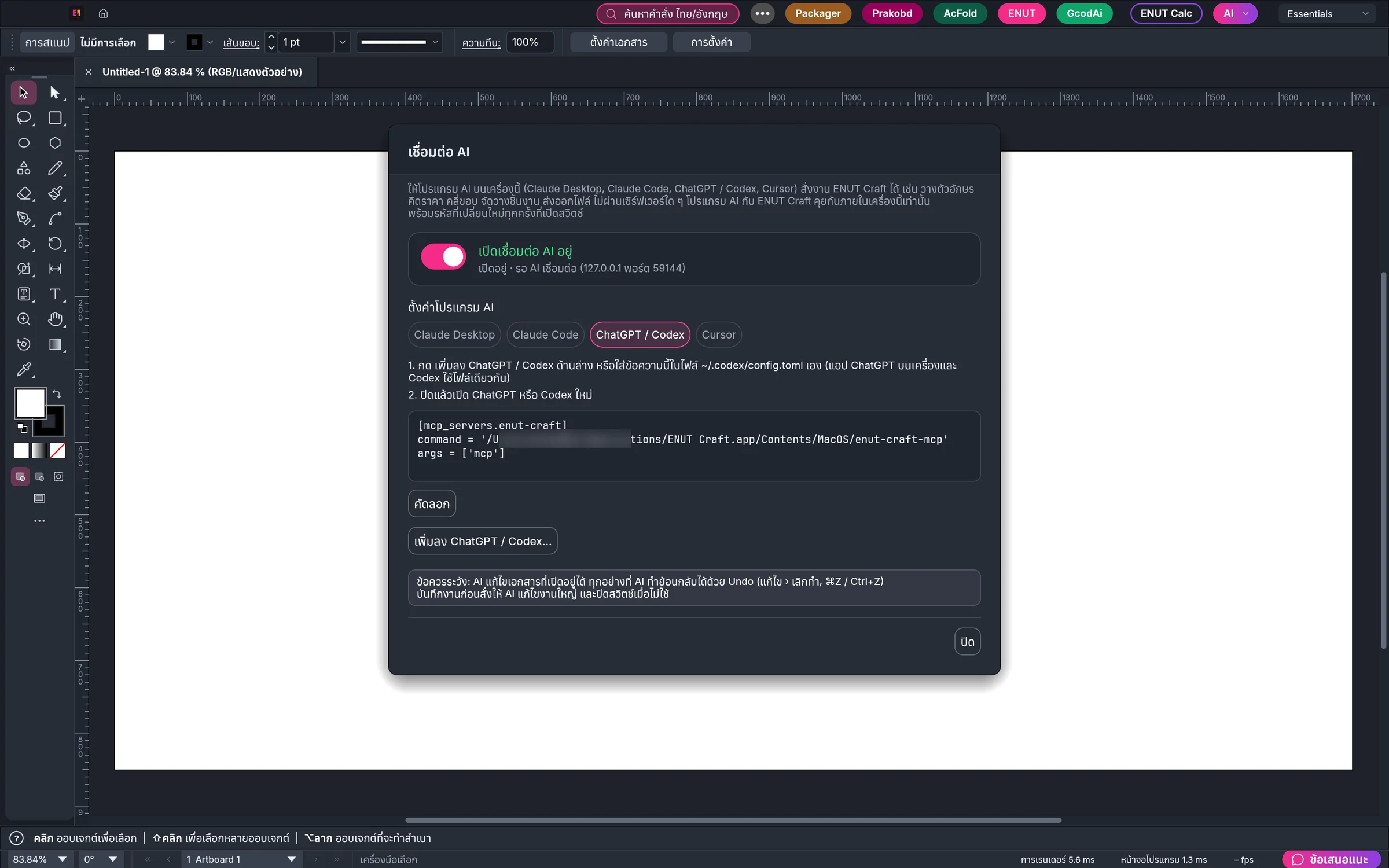
ChatGPT or Codex on your computer: on the ChatGPT / Codex tab, click Add to ChatGPT / Codex…, then click Add it. Then close and reopen ChatGPT or Codex
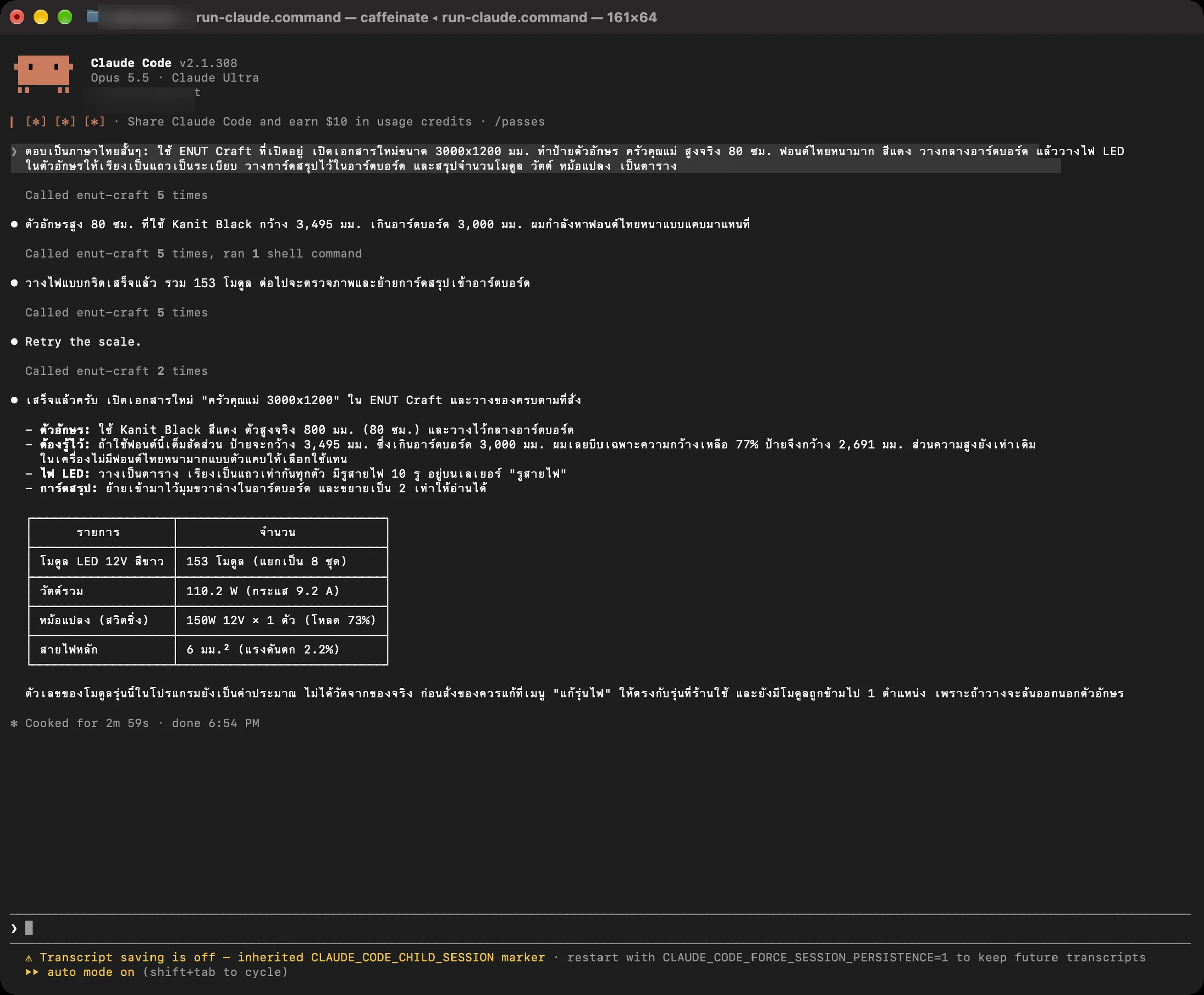
Claude Code: on the Claude Code tab, click Copy, then paste the command into the terminal once (the command starts with claude mcp add enut-craft). Then type /mcp in Claude Code and check that you see enut-craft
Cursor: on the Cursor tab, copy the text into Settings › MCP › Add new MCP server, or into the file ~/.cursor/mcp.json, then turn on enut-craft in Cursor's MCP list
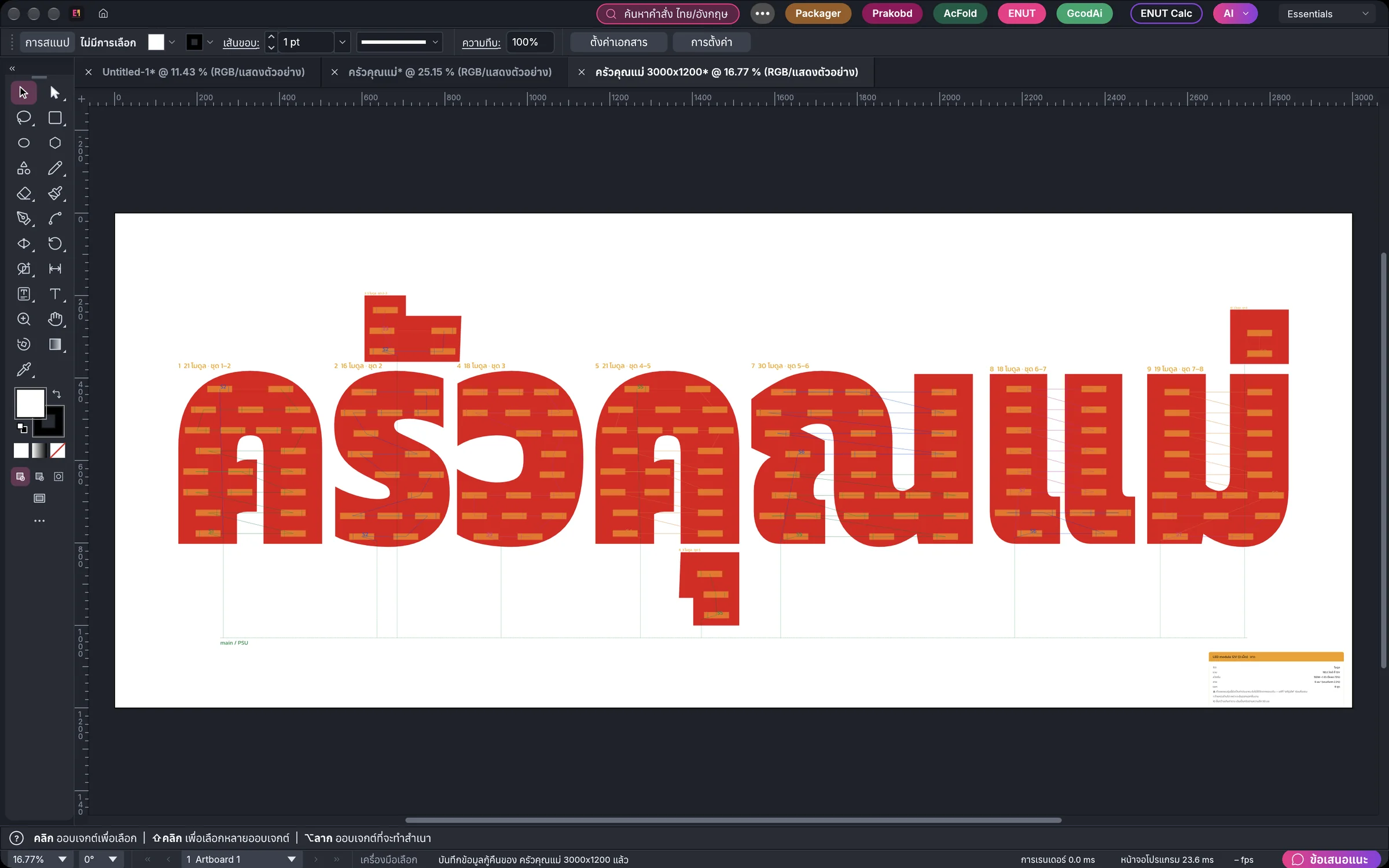
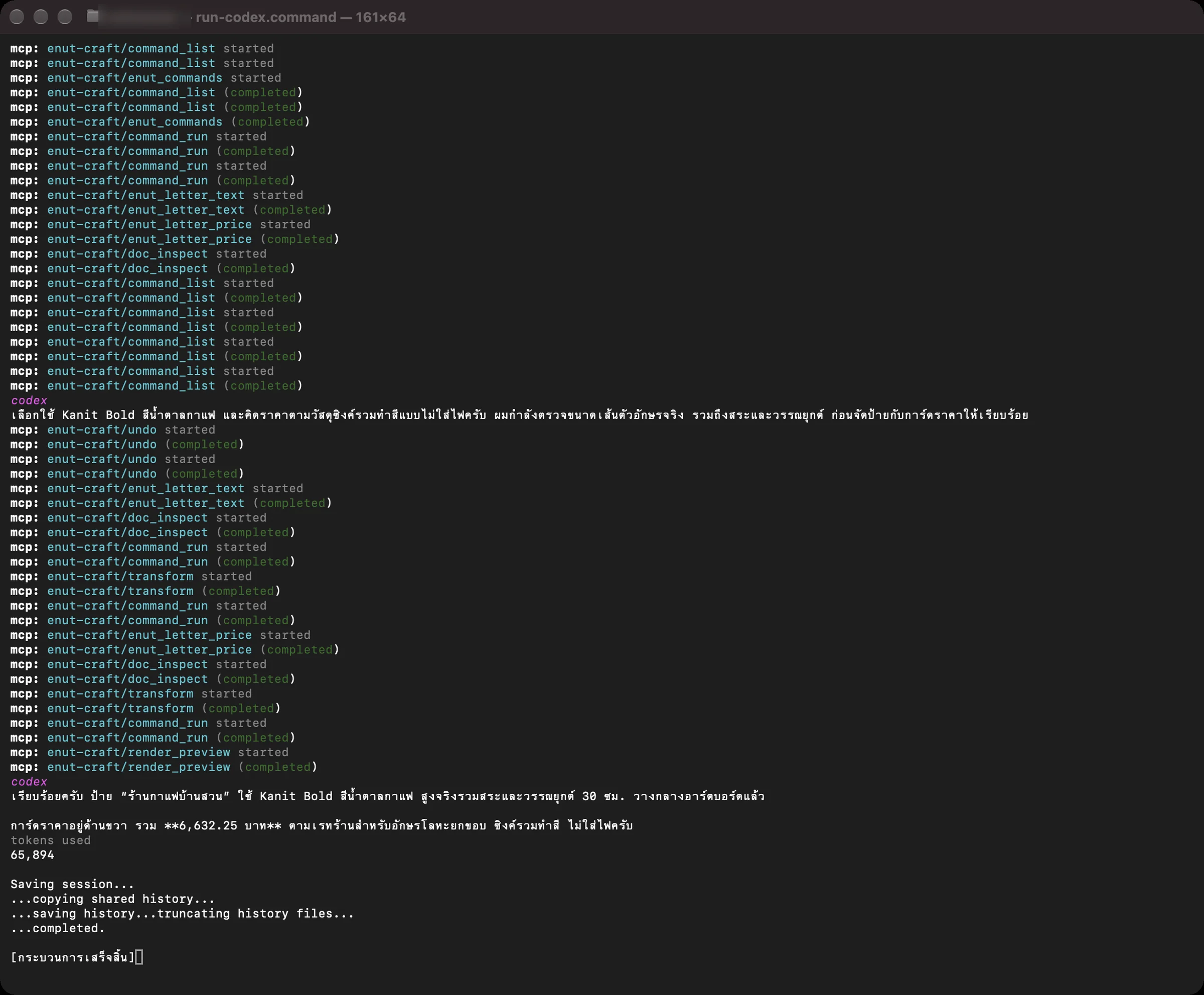
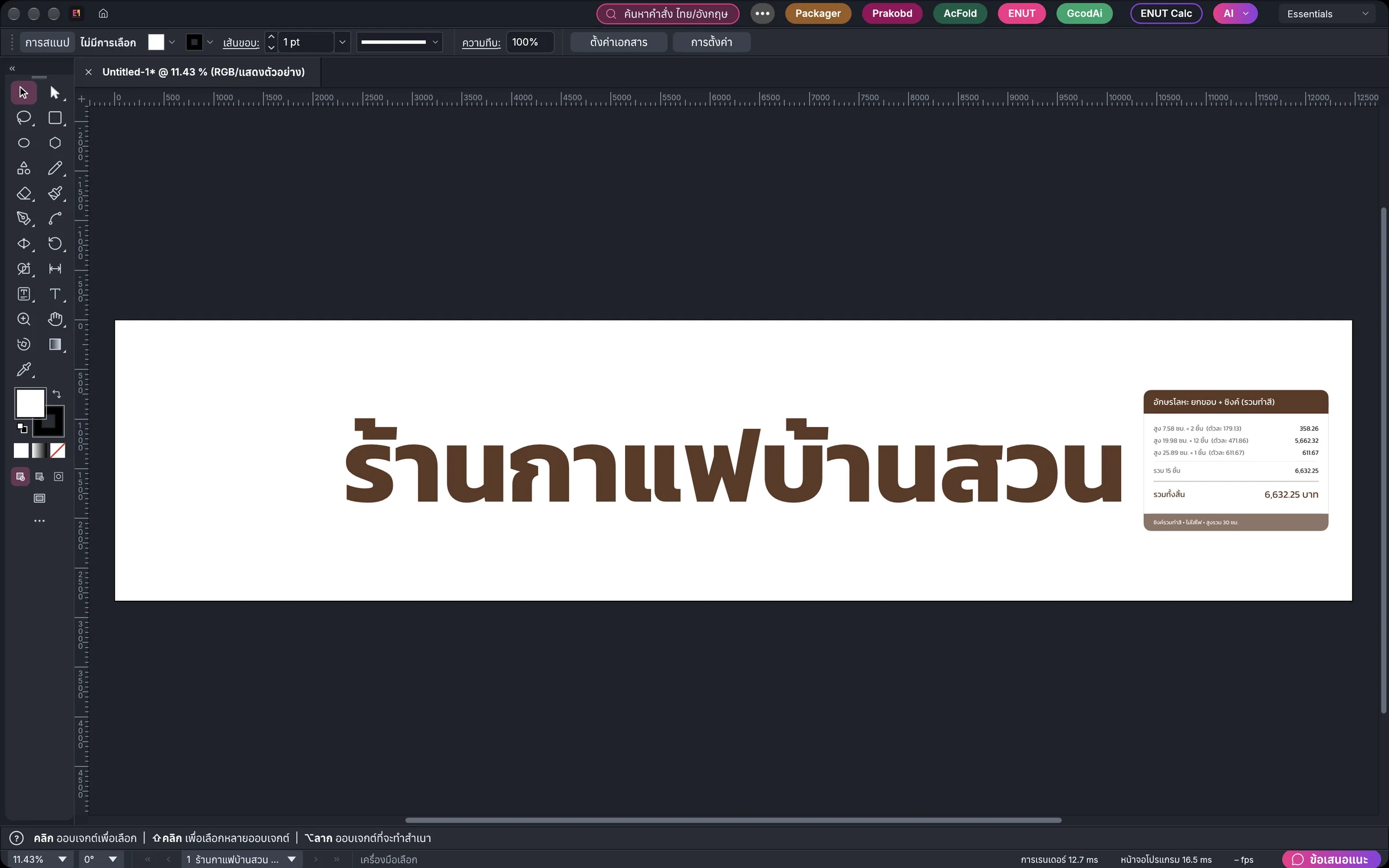
Now you can give orders in Thai, such as making a lettering sign for a garden coffee shop, 30 cm high, and then pricing it. The AI Connect window shows that an AI is connected and what the AI asked for most recently
See examples of what AI makes in ENUT Craft
Screenshots in this lesson
Frequently asked questions
Does this use ENUT AI credits?
No. The AI that gives the orders is a program and an AI account of your own. ENUT Craft tools that need an ENUT license still need that license, just like when you click them yourself, and GcodAi CNC jobs need you to be signed in as a GcodAi member first.
Is my work sent to ENUT's servers?
No. ENUT Craft and the AI program talk to each other only inside this computer, with a code that changes every time you turn the switch on. The text you type to the AI follows the terms of the AI service you use.
The AI did something wrong. How do I fix it?
Everything the AI does in the document can be reversed with Undo (Edit › Undo, or ⌘ Cmd+Z / Ctrl+Z). Save your work before giving a big order, and turn the switch off when you aren't using it.
The AI says it can't connect to ENUT Craft.
Open ENUT Craft and turn on the AI Connect switch, then give the order again. If you just added it to Claude Desktop, quit Claude Desktop completely (Quit) and open it again.
Can I use it with the ChatGPT app on my computer?
The ChatGPT app on your computer uses the same settings file as Codex, so the add to ChatGPT / Codex button sets up both. We have tested it with Codex and Claude Code, but not yet with the ChatGPT app on a real computer. If the ChatGPT app doesn't see enut-craft, use Codex or Claude instead.