ClipLesson 38 of 61
AcFold Folded Boxes and Signs, Glue Tabs, Braces and Keyhole Slots
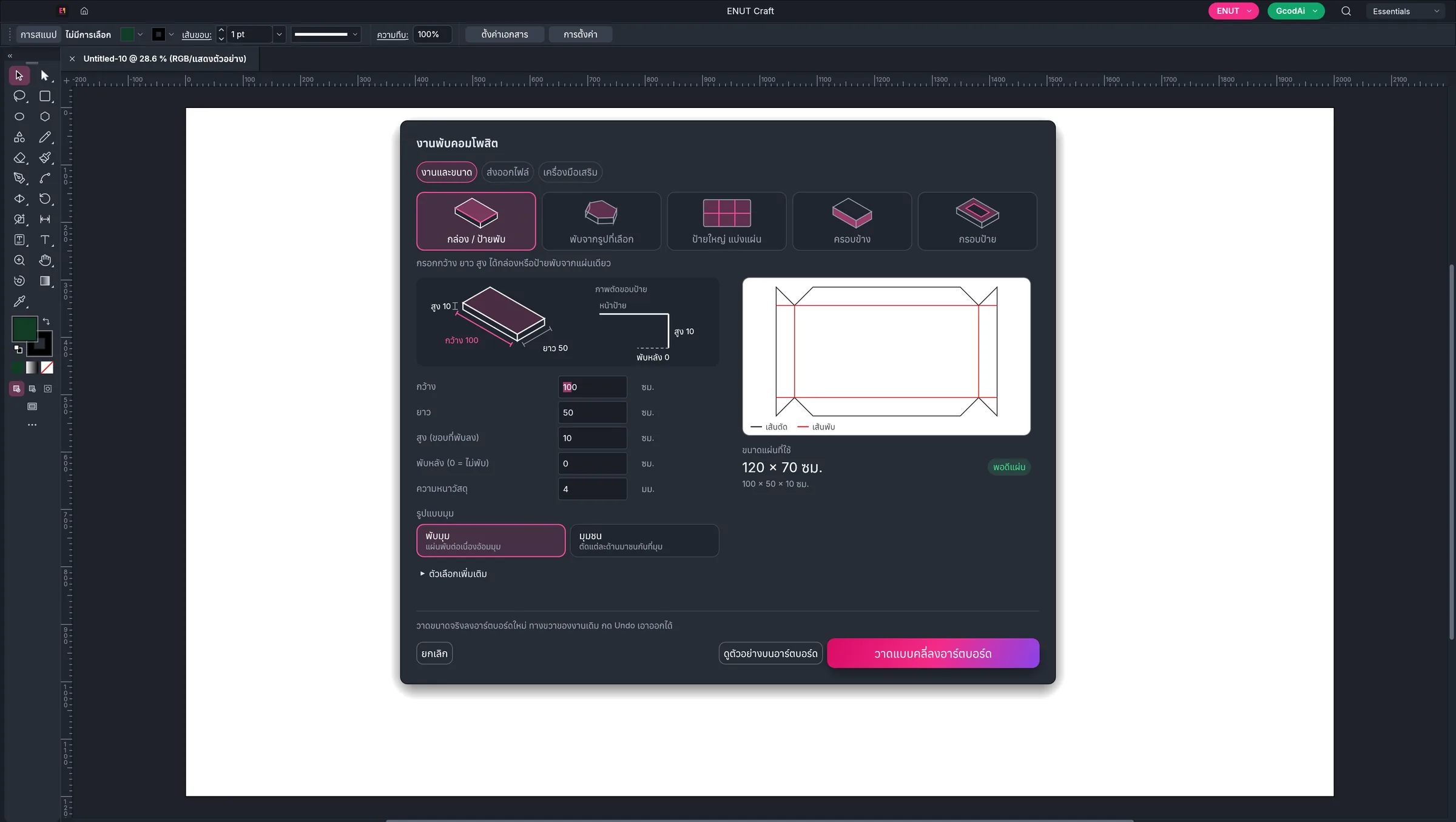
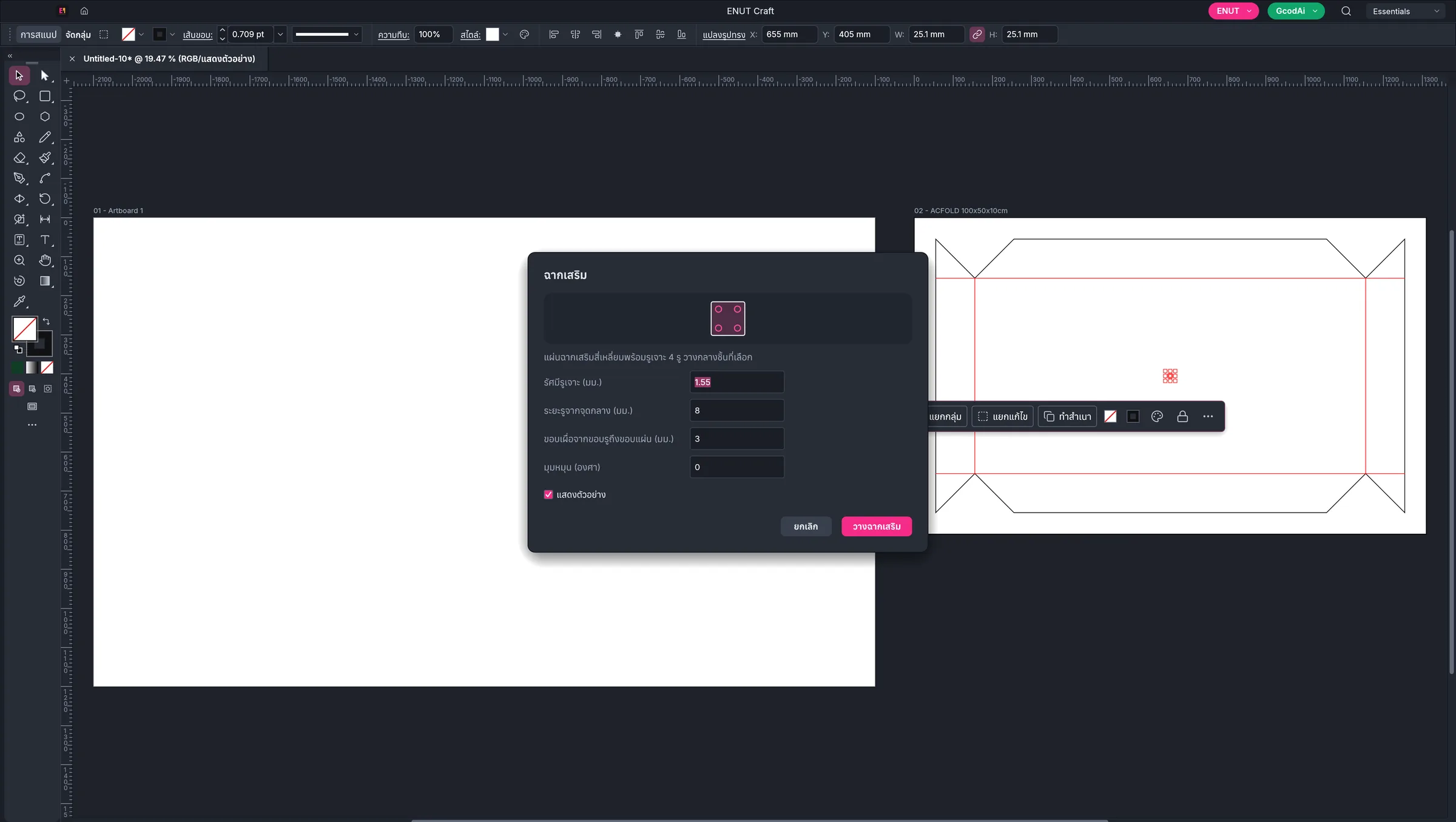
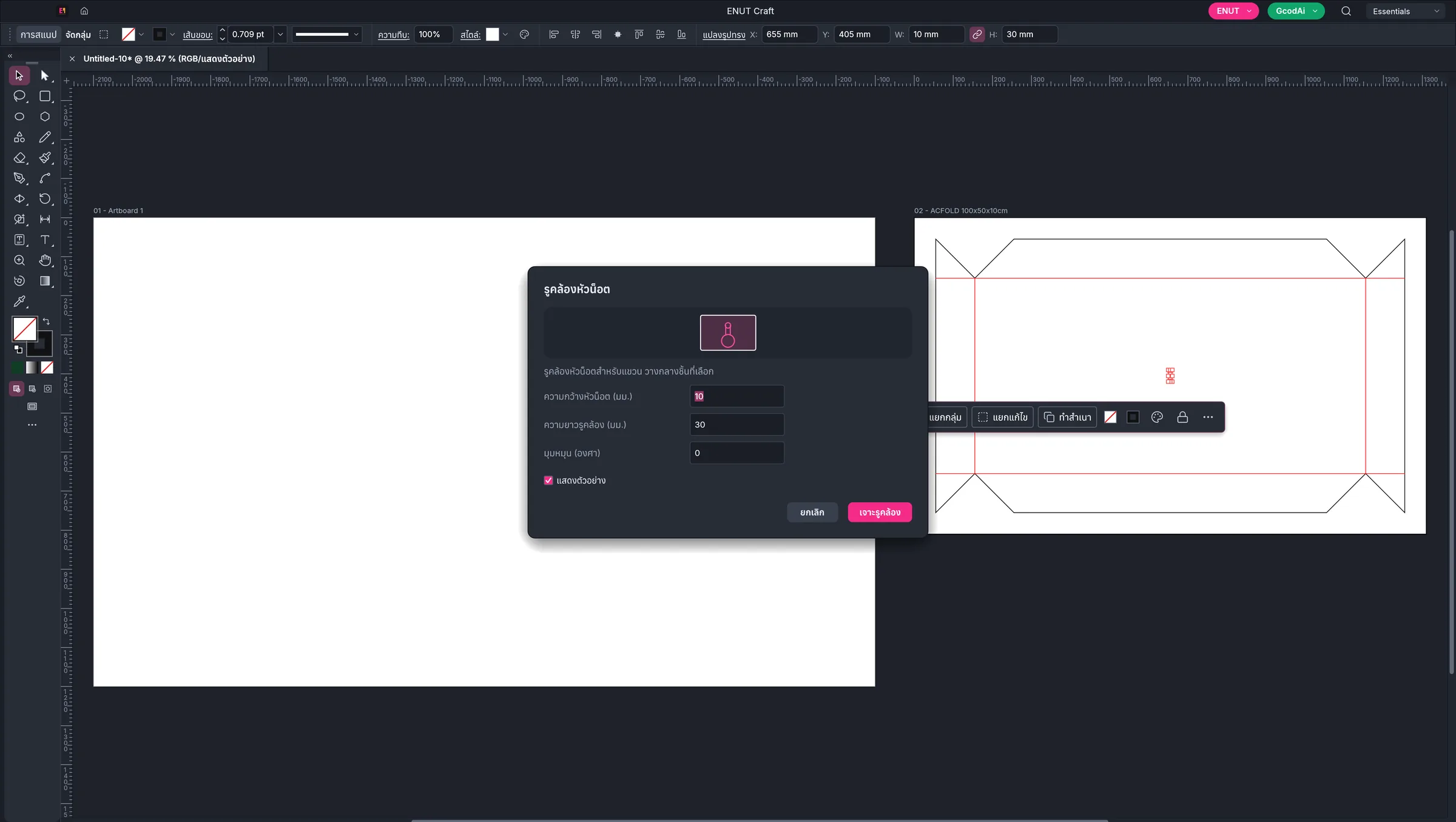
Open AcFold's composite folding from ENUT › Composite folding… or the AcFold button in the title bar. Pick a job from the cards, such as Box / Folded Sign or Sign Frame, type the size, and draw the real-size unfold on the artboard. You can add glue tabs, braces and keyhole slots from the extra tools tab.
Tutorial clip 0:47 (narrated in Thai) Watch on YouTube
Steps
Open ENUT › Composite folding… or click the AcFold button in the title bar, then choose AcFold Panel
On the Job and Size tab, pick a job card: Box / Folded Sign, Fold from Selection, Big Sign, Split Sheets, Side Cover or Sign Frame
Enter the material thickness, the sheet size and the Corner Style (folded corner or butt joint)
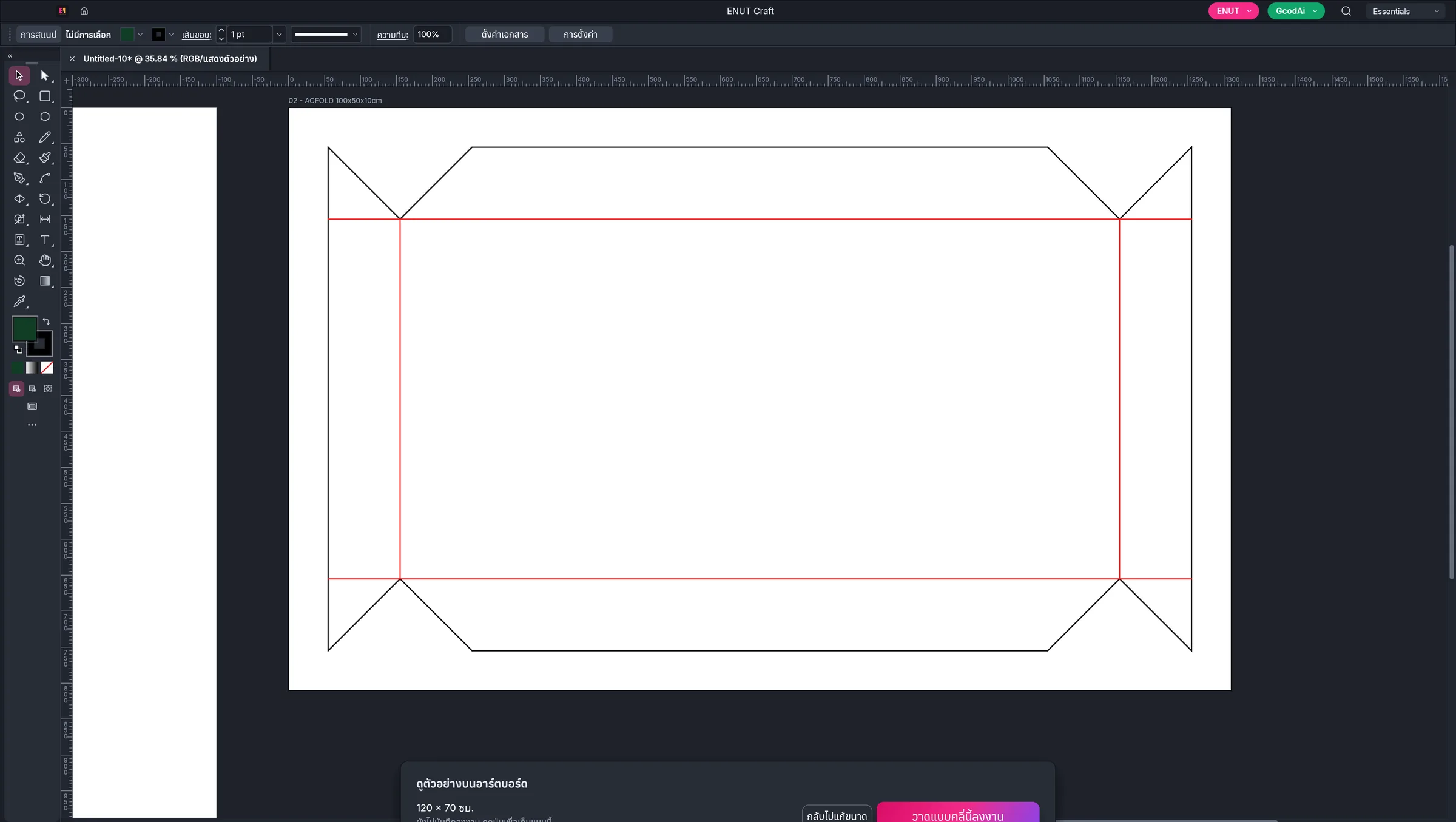
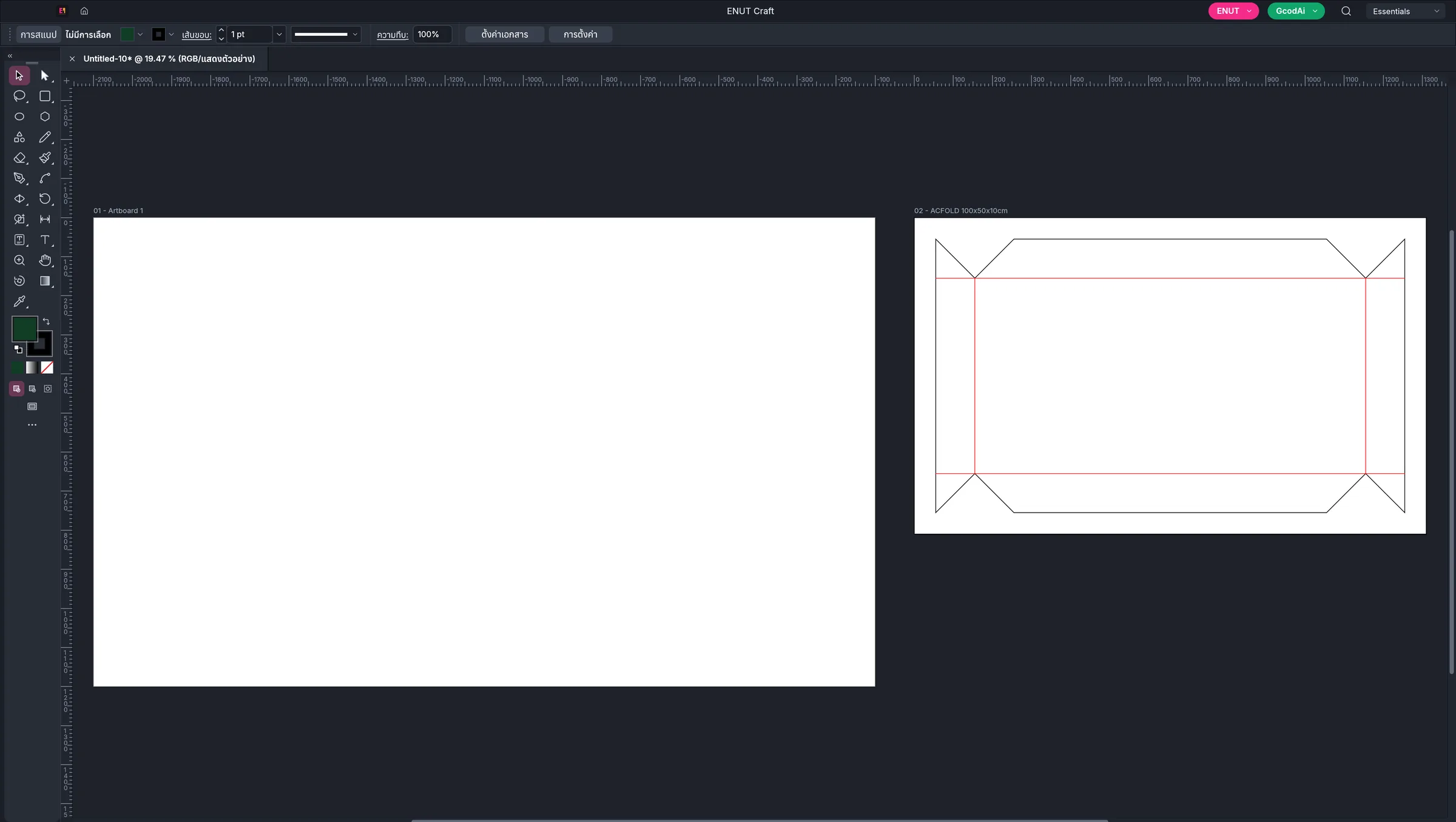
Click Preview on the artboard to check the unfold, then click Draw the unfold on the artboard
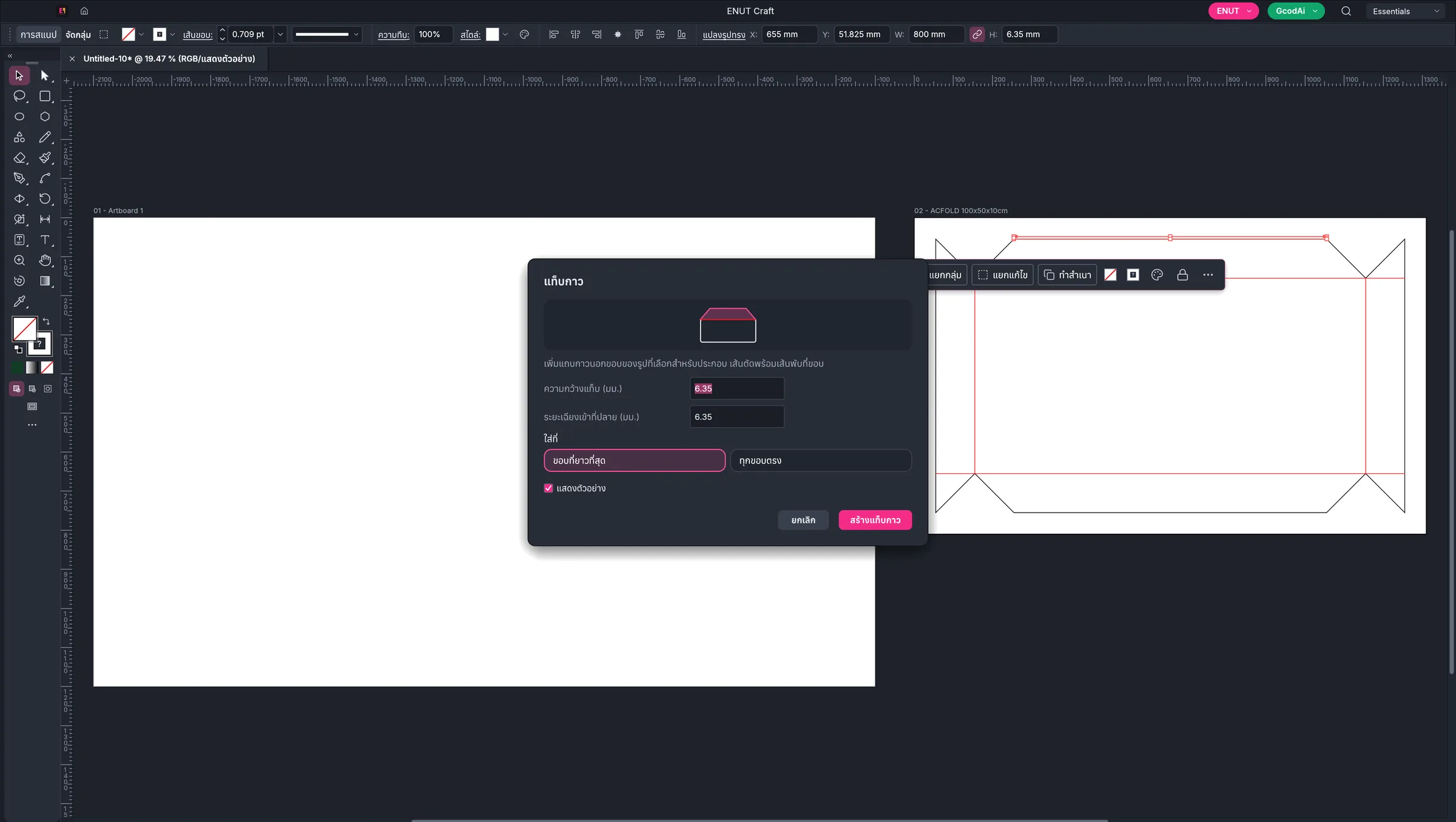
On the Extra Tools tab, select a piece, then click Add glue tabs, Add the brace or Cut the keyhole
Export the cut file as shown in the next lesson
Screenshots in this lesson