ENUT Craft
EN
Account page

ScreenshotLesson 21 of 61

Remove a picture's background

Select a product picture and use AI › AI Remove Background…. The AI keeps the main object and makes the background transparent. The picture stays at the same position and size in your work, and Undo takes it back.
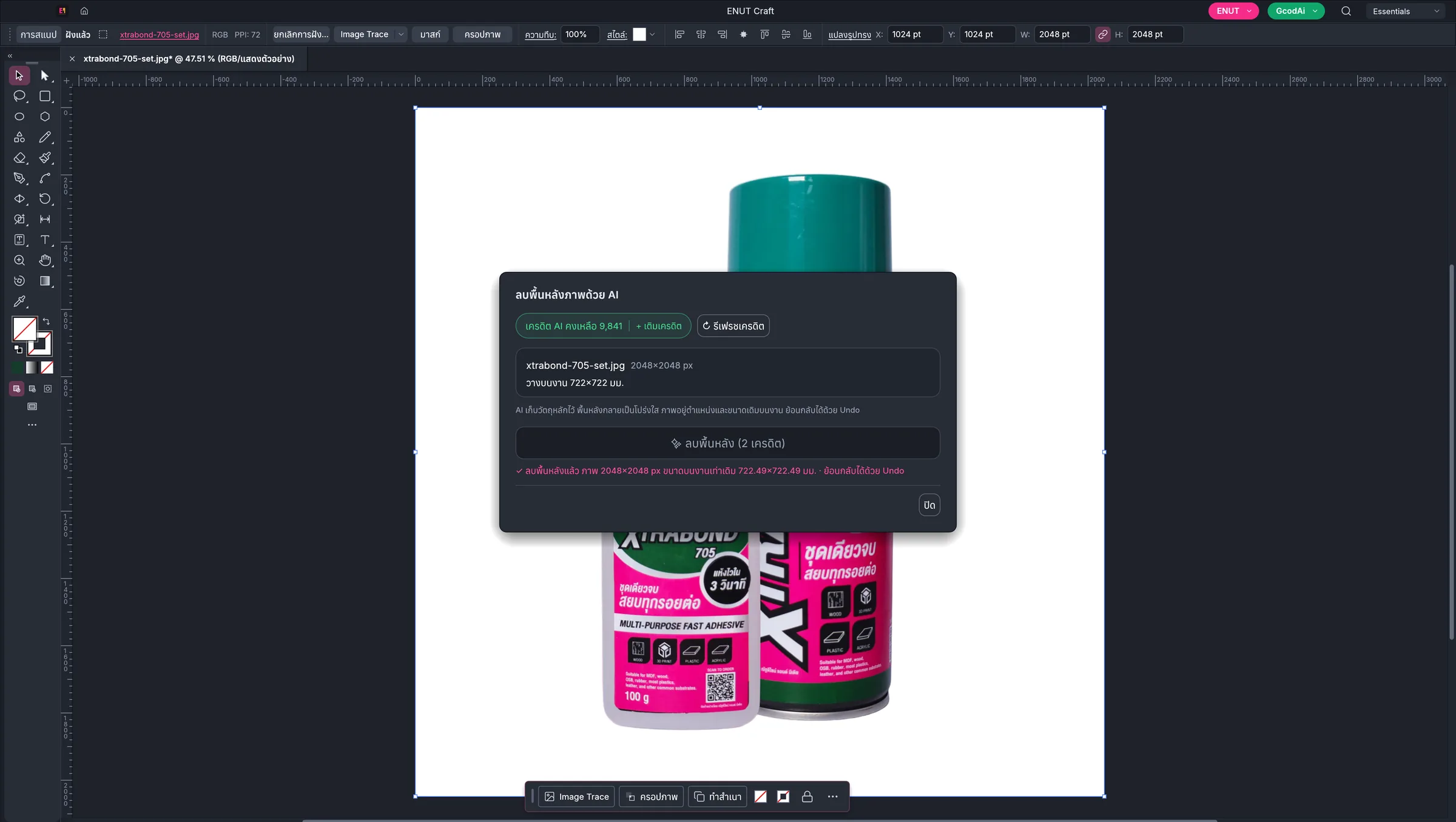
The AI background removal window in ENUT Craft. Only the product is left, in the same position and at the same size.
Remove an Image Background with AI The AI background removal window in ENUT Craft. Only the product is left, in the same position and at the same size.

Steps

  1. Select a picture in your work.

  2. Open AI › AI Remove Background… or use the AI Remove Background card on the home page.

  3. Click ✨ Remove Background (N Credits).

  4. Wait until it says the background has been removed. The new picture replaces the old one in the same place.

  5. Put it on a new color, or use it in a sign right away.

Screenshots in this lesson
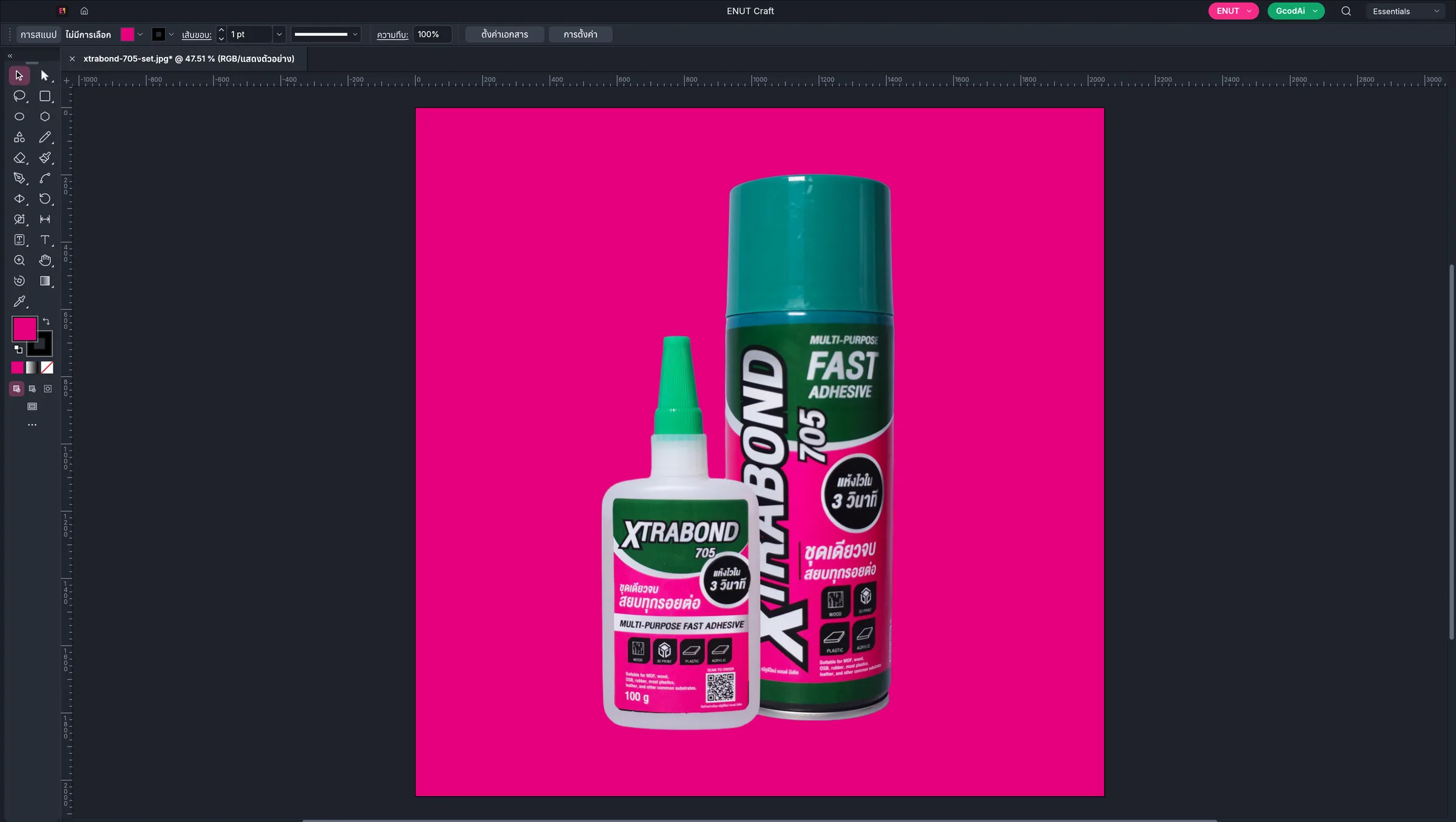
An XTRABOND glue product photo after AI background removal in ENUT Craft, placed on a new color. The product label still matches the original.
Product Photo After Background Removal An XTRABOND glue product photo after AI background removal in ENUT Craft, placed on a new color. The product label still matches the original.