ClipLesson 6 of 61
A tour of the screen: top menus, toolbar, the ENUT panel and the GcodAi panel
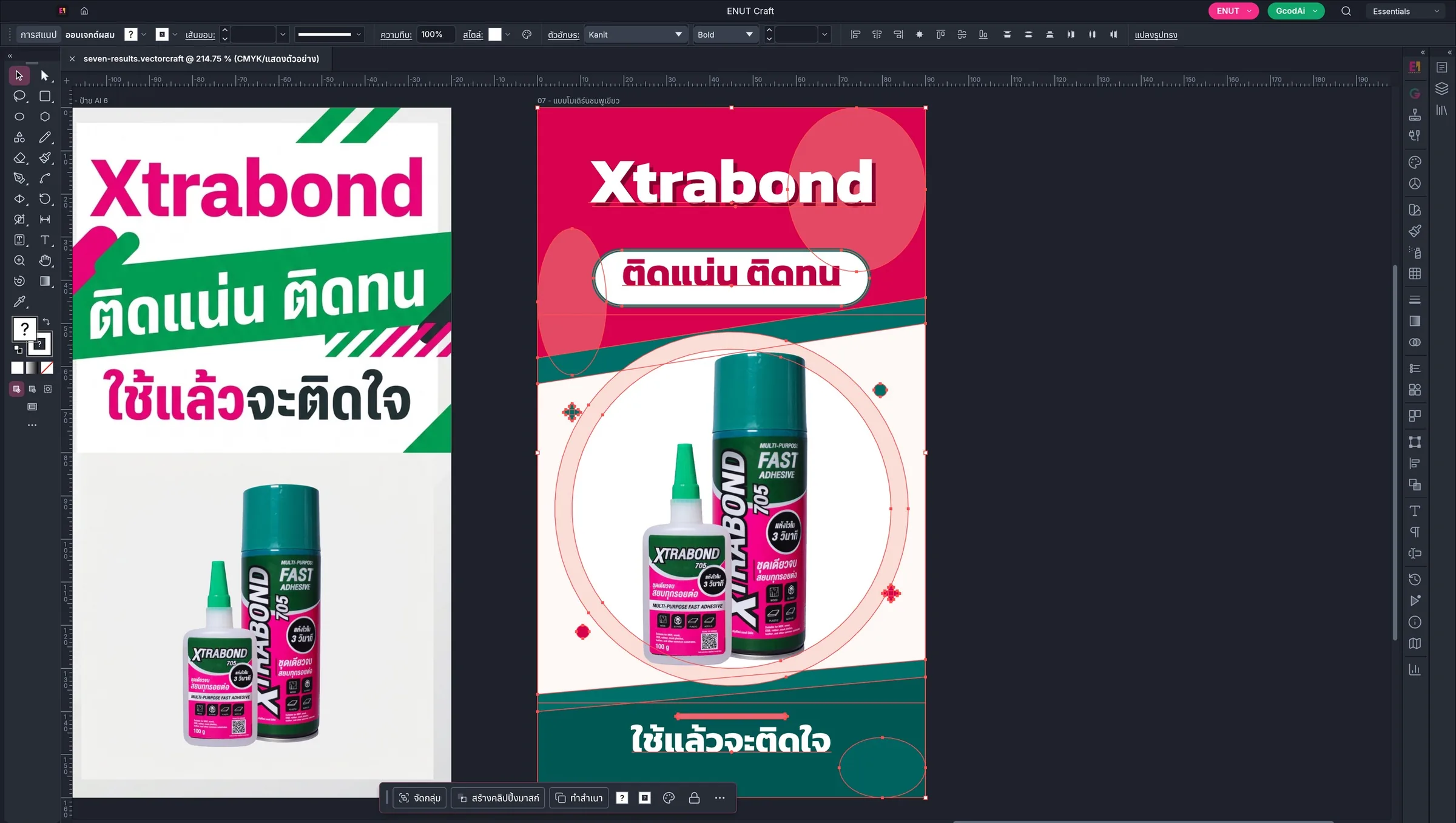
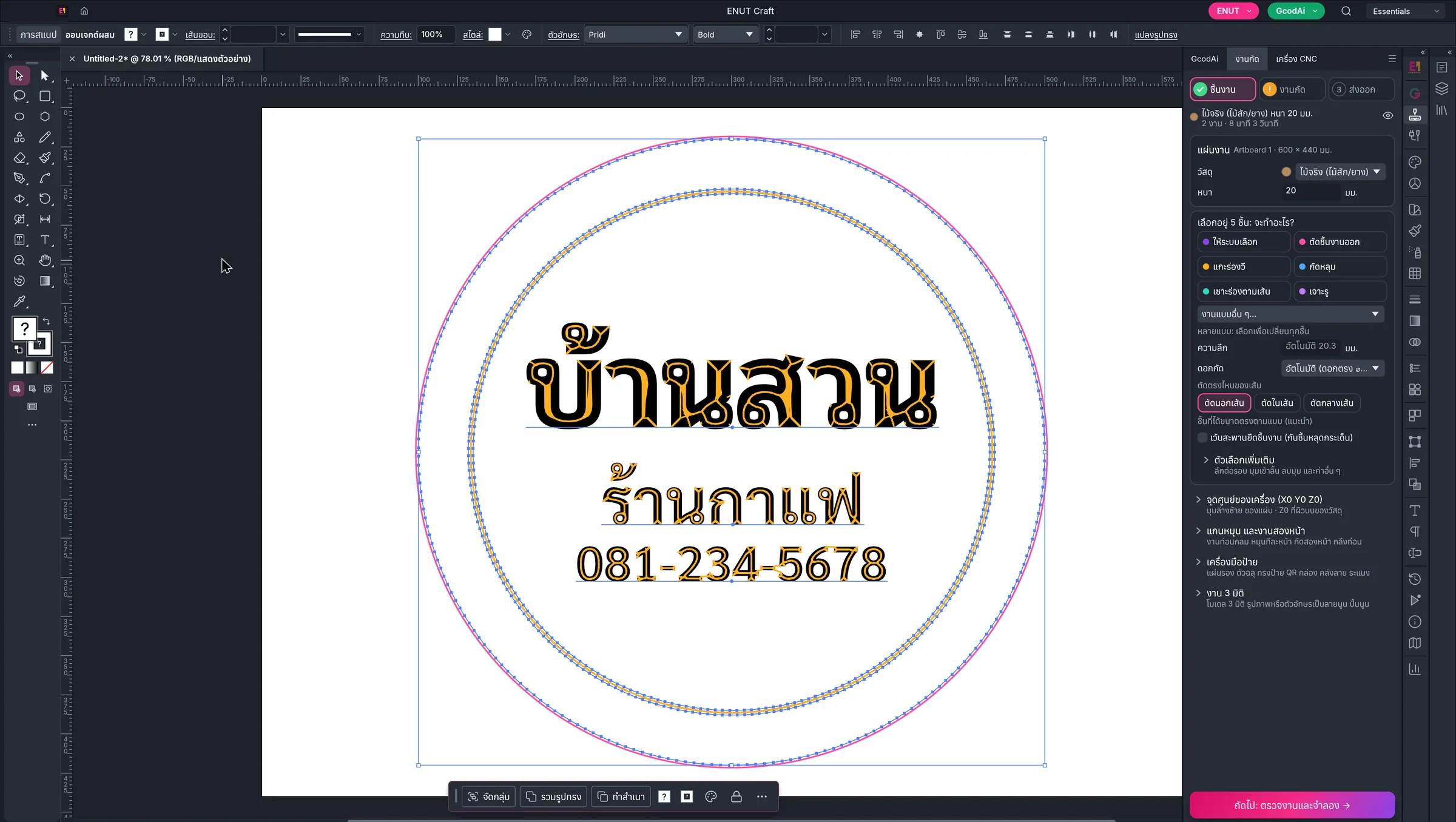
The ENUT Craft screen has a menu row on top, a drawing toolbar on the left, and ENUT and GcodAi buttons in the title bar. Click one to open a Thai tool panel right away. Click the house icon to go back to the home page.
Tutorial clip 3:04 (narrated in Thai) Watch on YouTube
Steps
The home page shows when you open the program. It has a box where you type to ask the AI to design, sample jobs, and the New file On and Recent File buttons. Click the house icon (Home) at the top left to come back to this page.
The top menu row reads File Edit Object ENUT GcodAi AcFold Prakobd AI Text Select Effect View Window Help. On a Mac the menu is at the very top of the screen.
The drawing toolbar is on the left, with tools such as the Select Tool, Pen Tool and Type Tool.
Click the pink ENUT button in the title bar and choose ENUT Panel. The panel groups the tools: Nesting and G-code · Die-cut · LED work · Quoting · Production · Aksorn3D · Extra tools. The AI tools are under the AI button.
Type a tool name in the Search tools… box on the ENUT Panel to find it faster.
Click the green GcodAi button and choose GcodAi Panel for CNC work. It has the groups CNC / CAM 3D work Sign Shop Settings. You can use it once you sign in as a GcodAi member.
Screenshots in this lesson