ScreenshotLesson 49 of 61
CNC Machine Setup, Tool Library and My Materials
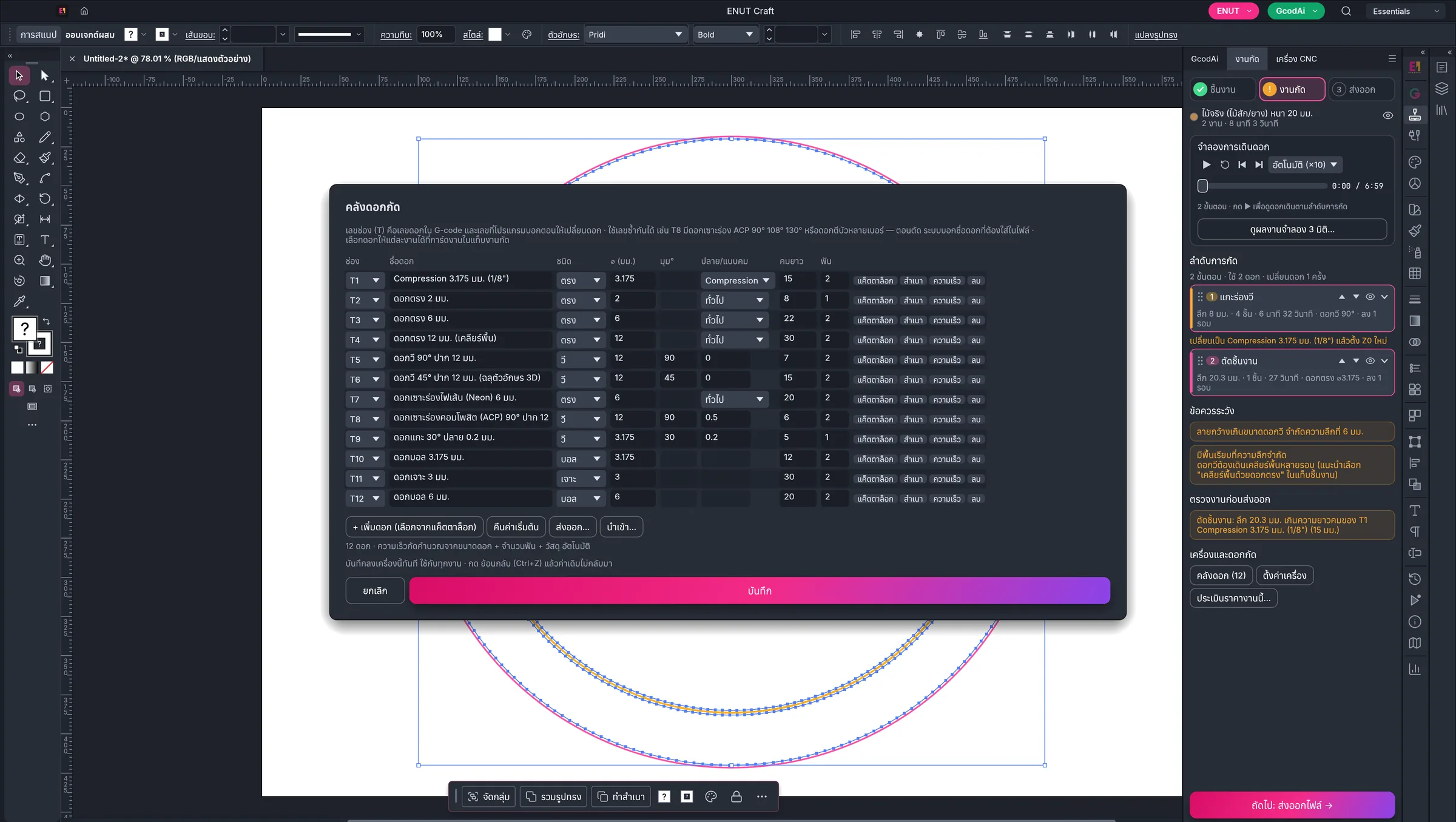
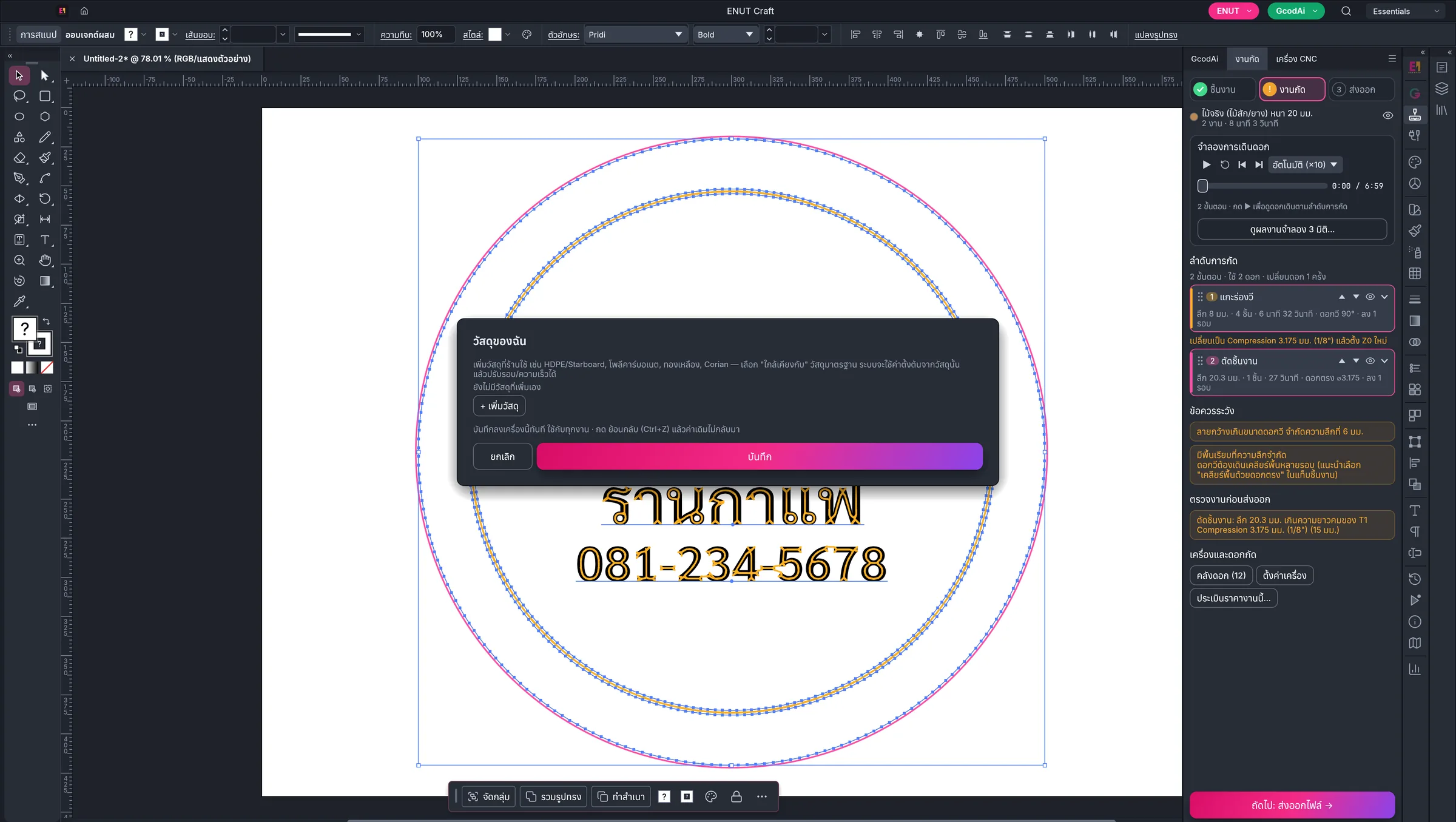
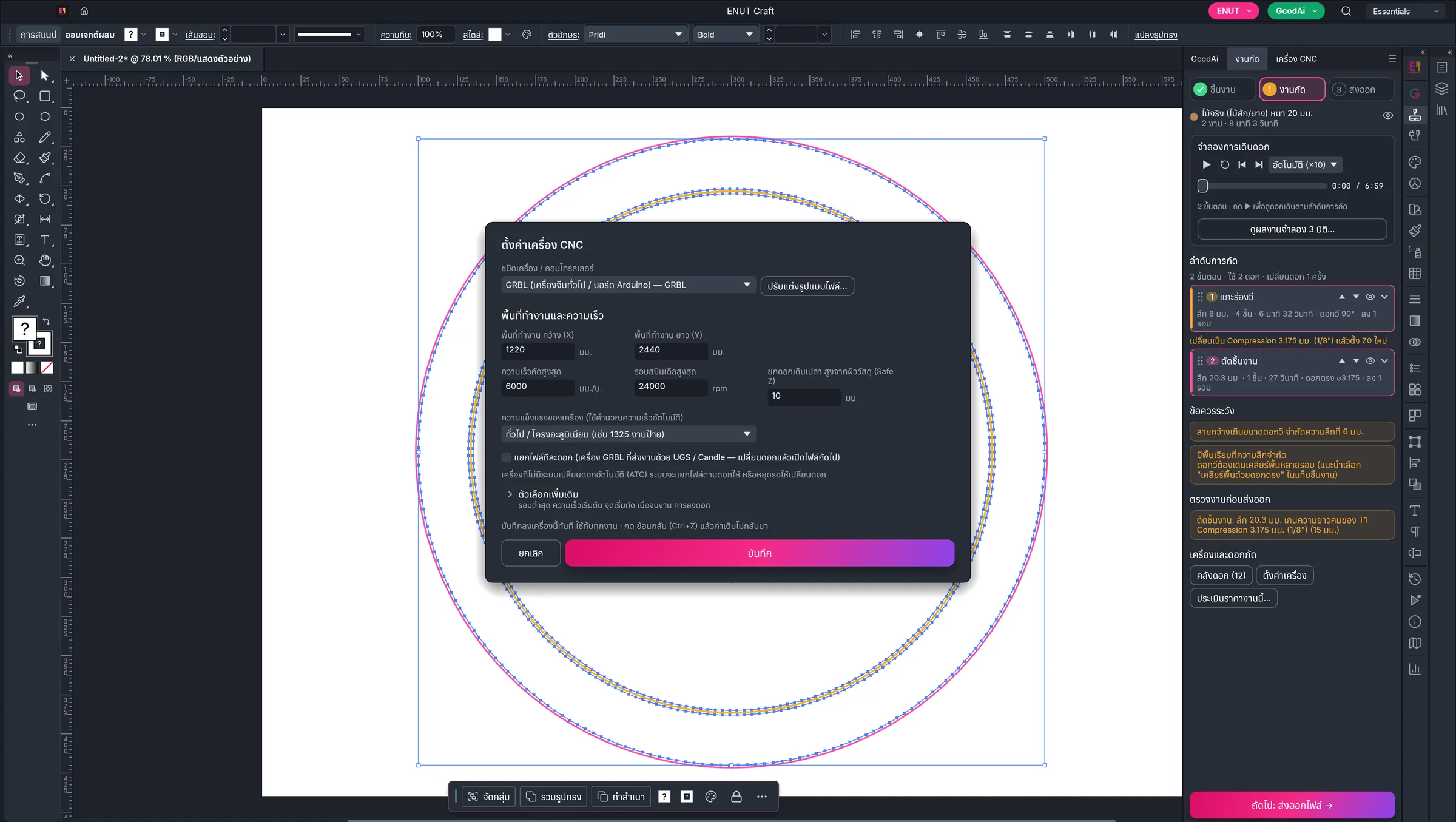
Set these up once before you start machining. CNC Machine Setup tells the program your machine type and speeds, the tool library stores the bits your shop has, and My Materials stores the materials you use often. All of them are in the ≡ menu of the machining panel, under Settings.
Steps
Open GcodAi › CNC / CAM…, click the ≡ menu of the panel, and go to the Settings section
CNC Machine Setup…: choose the Machine type / controller, enter the Max Cutting Speed and the Max Spindle Speed, then click Save
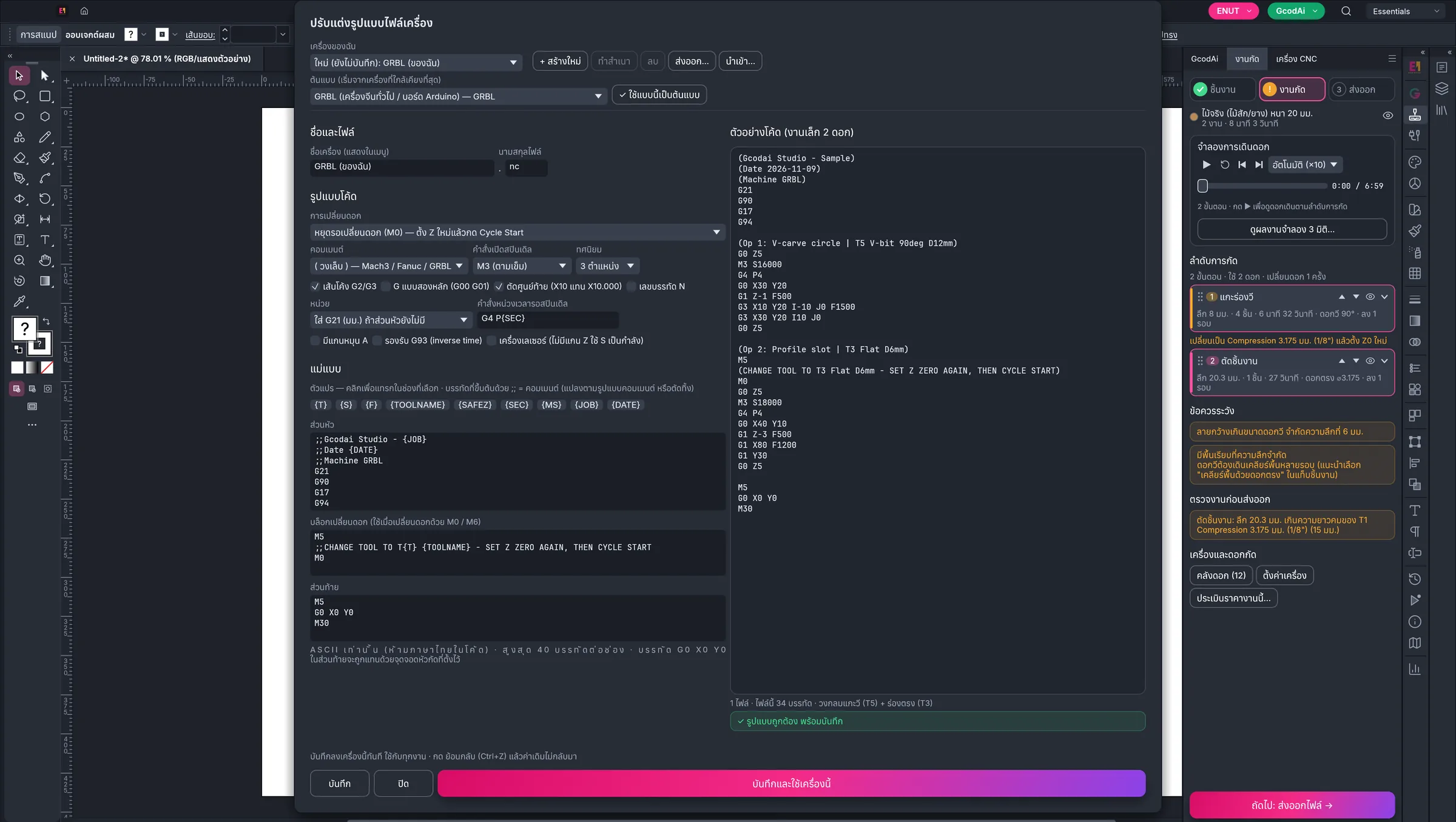
If the machine doesn't read the file correctly, use Customize the machine's file format…. There are sample files to look at
Tool library…: click + Add a tool (from the catalogue), enter the size and speeds, then click Save
My materials…: click + Add a material, enter the Name, the Default thickness and the Spindle Speed, then click Save
Screenshots in this lesson