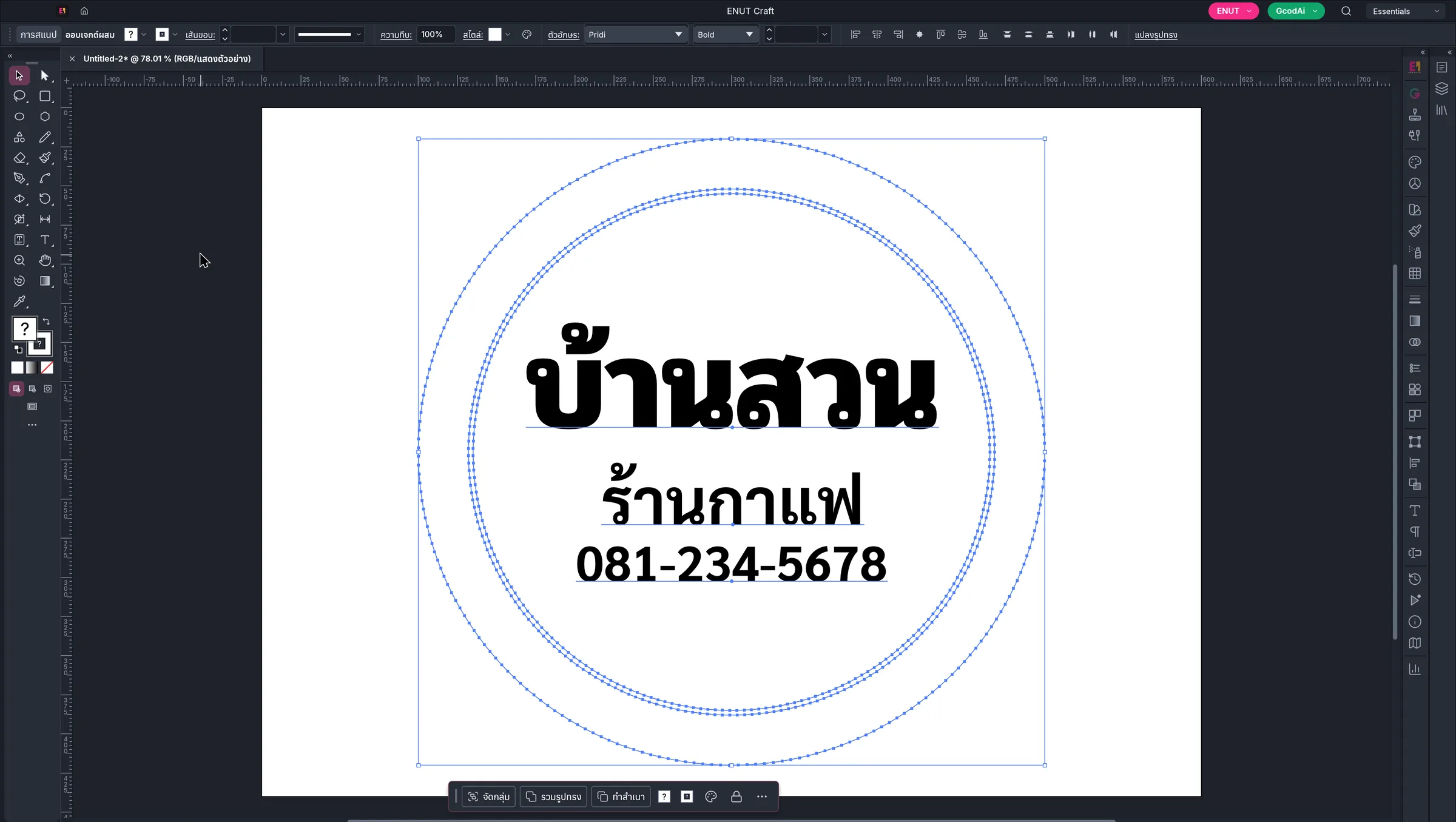
ScreenshotLesson 18 of 61
Sign Assistant: 3 draft layouts
The Sign Assistant runs on your own computer and does not use AI credits. Describe the sign you want in Thai, such as the size, material and how to cut it, and you get 3 layouts to choose from. Then it builds the sign on the work sheet with the cutting settings already set. It uses a GcodAi member account.
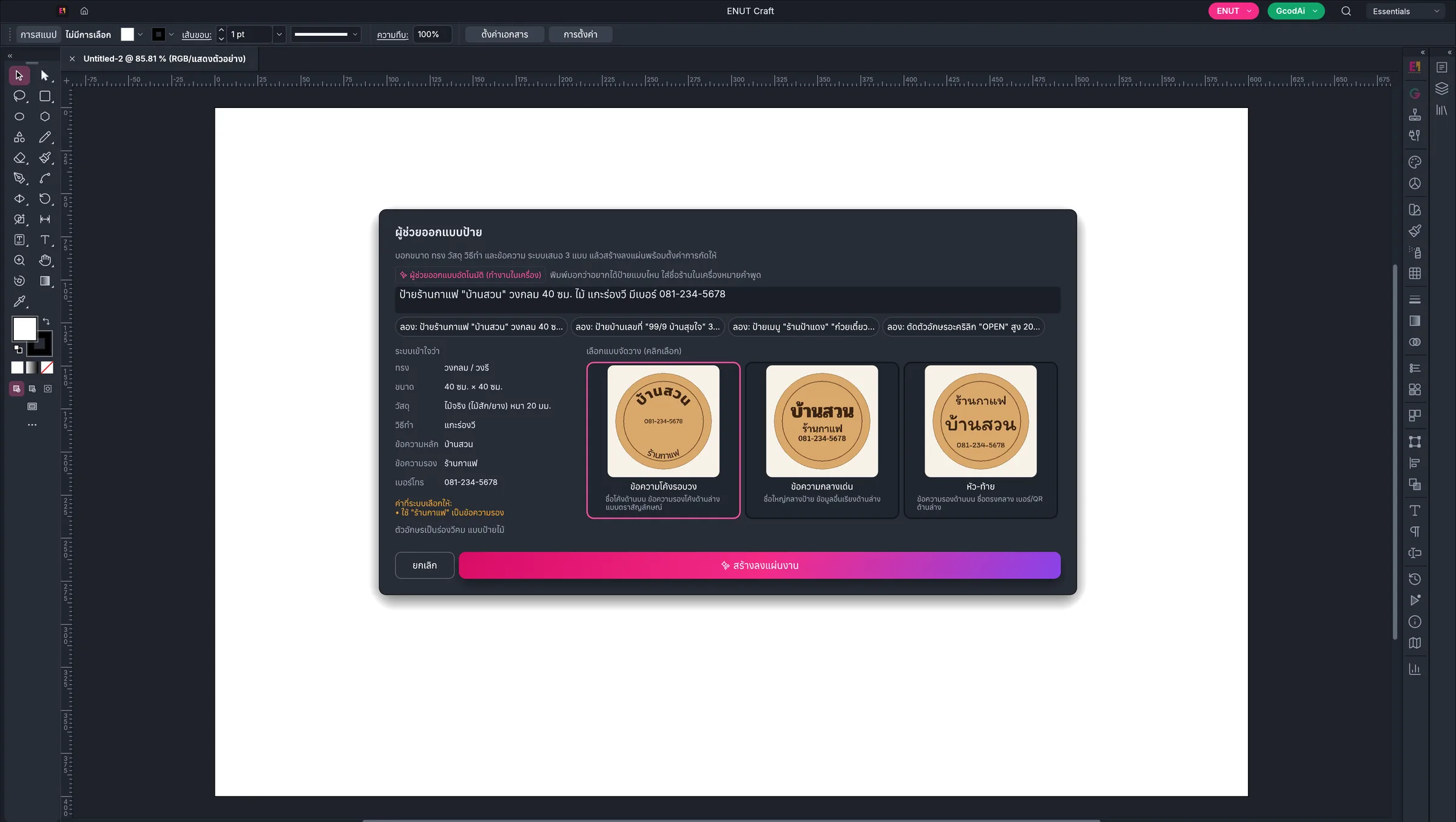
Steps
Click the GcodAi button in the title bar and choose Sign Assistant… (it is also in the ENUT panel).
Type what kind of sign you want, in Thai, and put the shop name in quotation marks. For example: a round 40 cm wooden coffee shop sign named "Baan Suan", V-carved.
Check the What the assistant understood section to make sure the size, material and cutting method are right.
Pick 1 of the 3 layouts under Pick a layout (click it).
Click ✨ Make it on the sheet. The sign goes onto the sheet with the cutting settings ready. You can go straight on to simulate and export in the GcodAi panel.
Screenshots in this lesson