ClipLesson 51 of 61
3D Machining Simulation, Checking the Job, and Exporting G-code
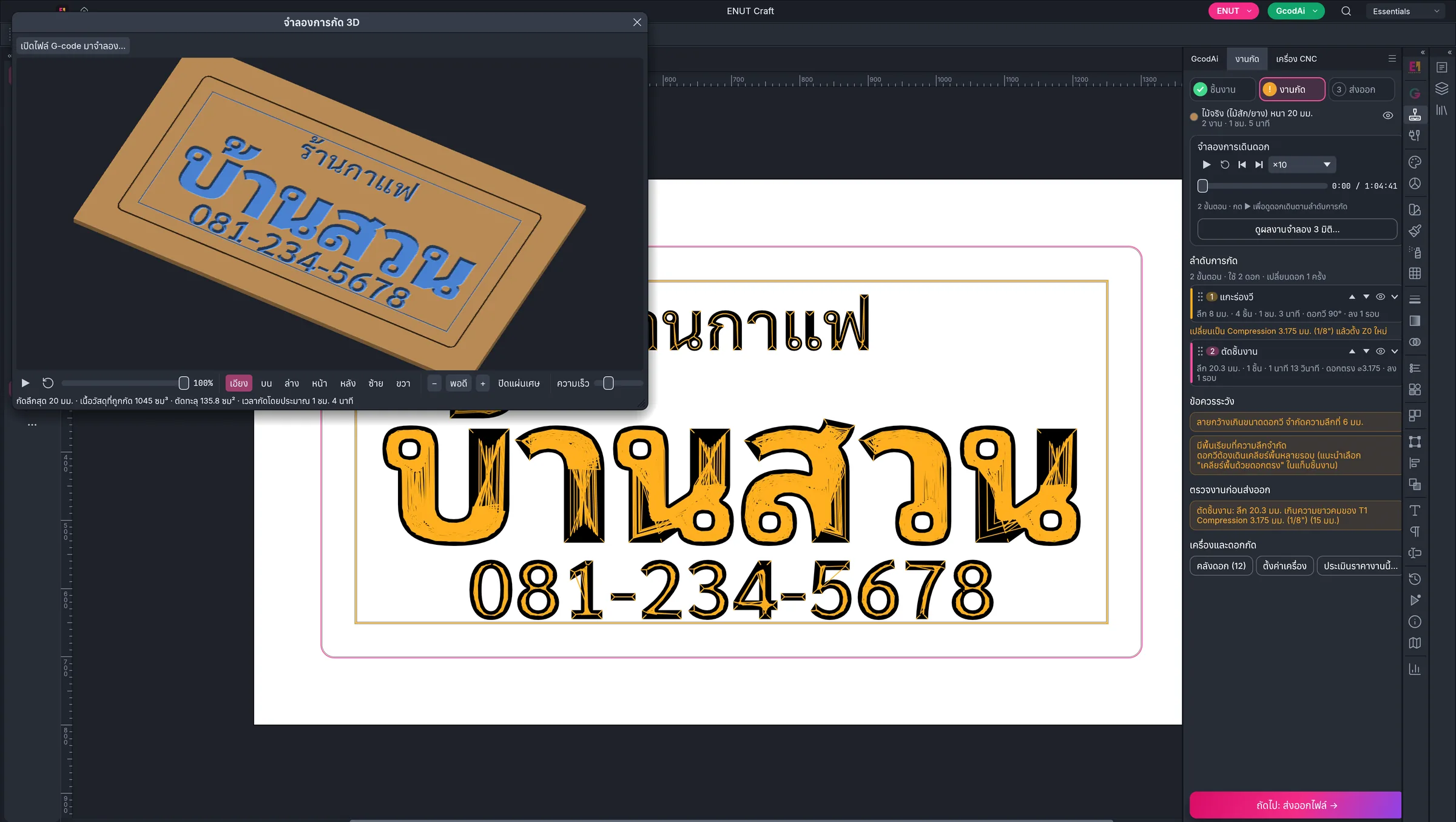
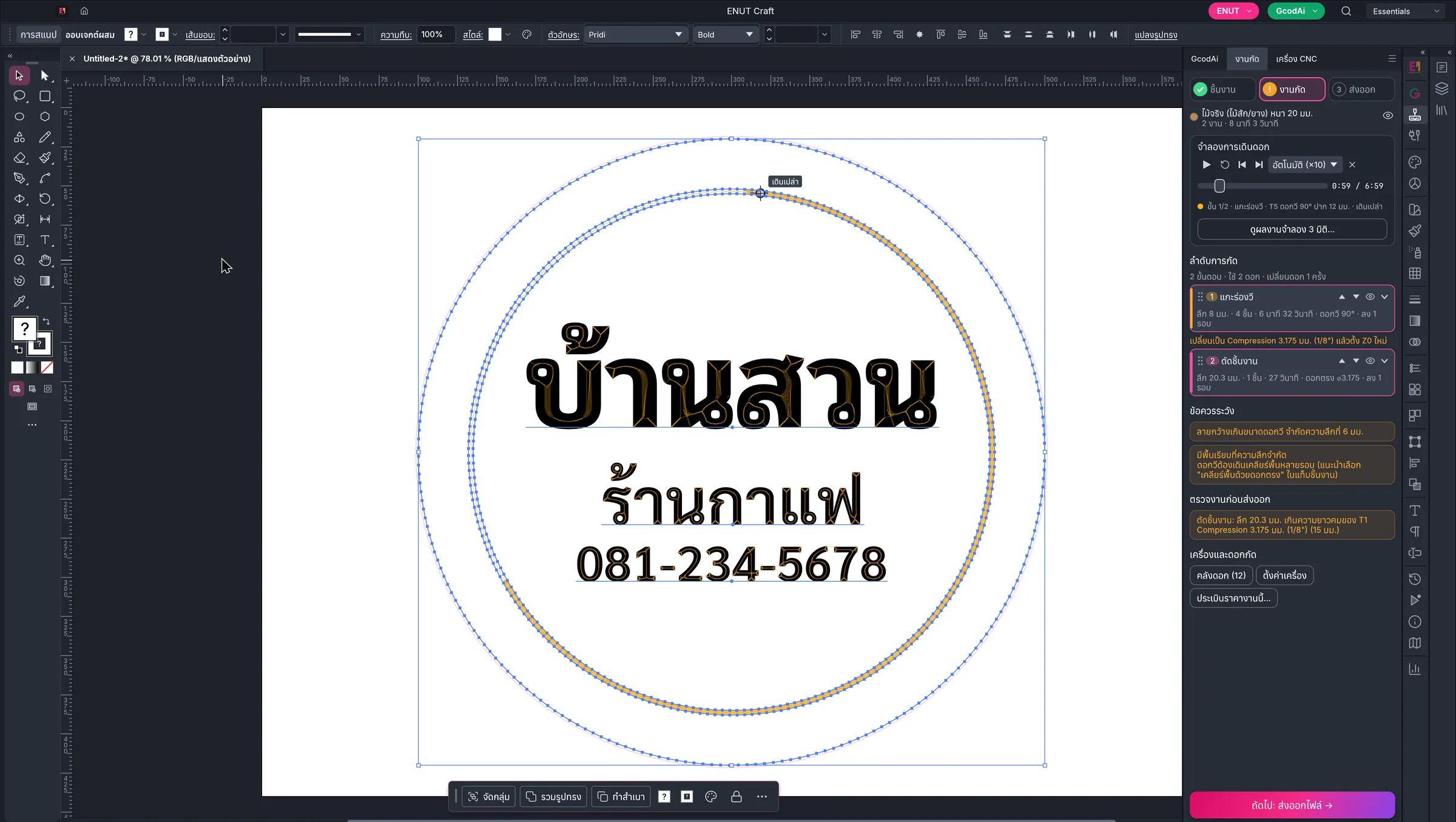
On the machining tab, play the tool path simulation to see the order of work, then open the 3D simulation to see the piece before you really cut it. Check the list of problems before exporting, then go to the export tab to export G-code.
 Clip in progress
The clip for this lesson is being made. For now, follow the screenshots and steps below. The clip will appear here when it's ready.
Steps
On the Machining tab, under Tool Path Simulation, click Play Simulation to watch the cutting order on screen
Click View 3D Simulation…. The 3D Machining Simulation window has play and stop buttons and a control for Speed
Look at Check Before Export. If it says it's ready to export with no problems found, carry on. If it lists problems, fix them first
Click Next: Export File → to go to the Export tab. Choose the Machine / Controller and set the File Name (English)
Click Export G-code…
Screenshots in this lesson