
ClipLesson 43 of 61
Fill In Names and Photos Automatically from a List (Name Badges, Certificates, ID Cards)
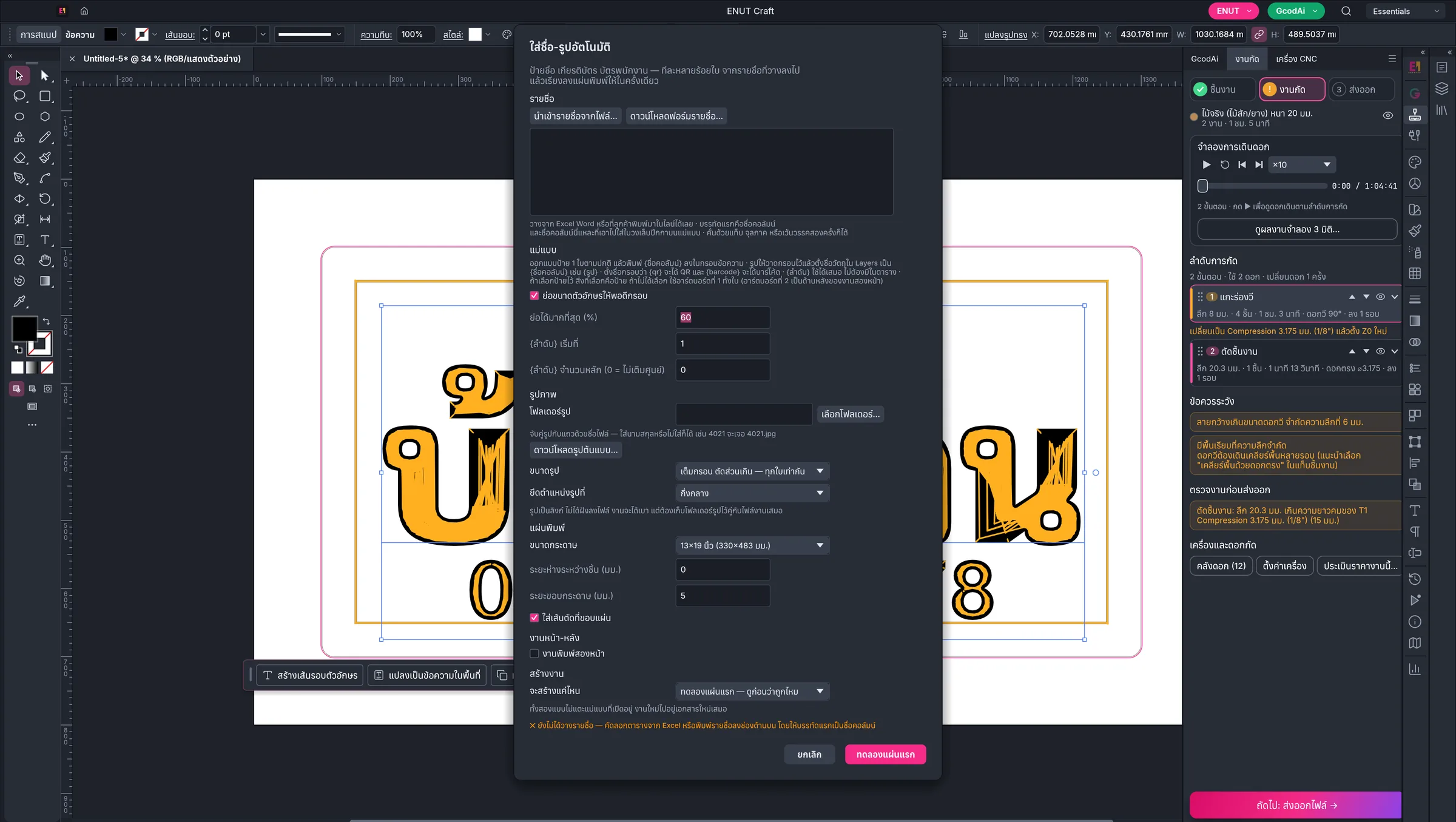
Make one template and put the column names in curly braces, such as {name}. Then use ENUT › Variable Data…, paste your list from Excel or import a CSV file, and the program makes every card and lays them out on print sheets in one go. Photos are matched by file name.
 Clip in progress
The clip for this lesson is being made. For now, follow the screenshots and steps below. The clip will appear here when it's ready.
Steps
Make one template and type the column names in curly braces where the data should go, such as {name} and {position}
Photo frame: name the frame {photo} in the Layers panel. For a QR code or barcode, name it {qr} or {barcode}. {number} gives a running number
Select the template, then open ENUT › Variable Data…
In List, paste data from Excel, Word or chat. The first line is the column names. Or click Import a list file… (.csv or .txt)
In Picture folder, click Choose a folder…. Photos are matched by file name, so 4021 matches 4021.jpg
Choose the Paper and the Gap between badges (mm), click Try the first sheet, check it, then click Make the whole job