
ClipLesson 16 of 61
Design a sign with AI from Thai text
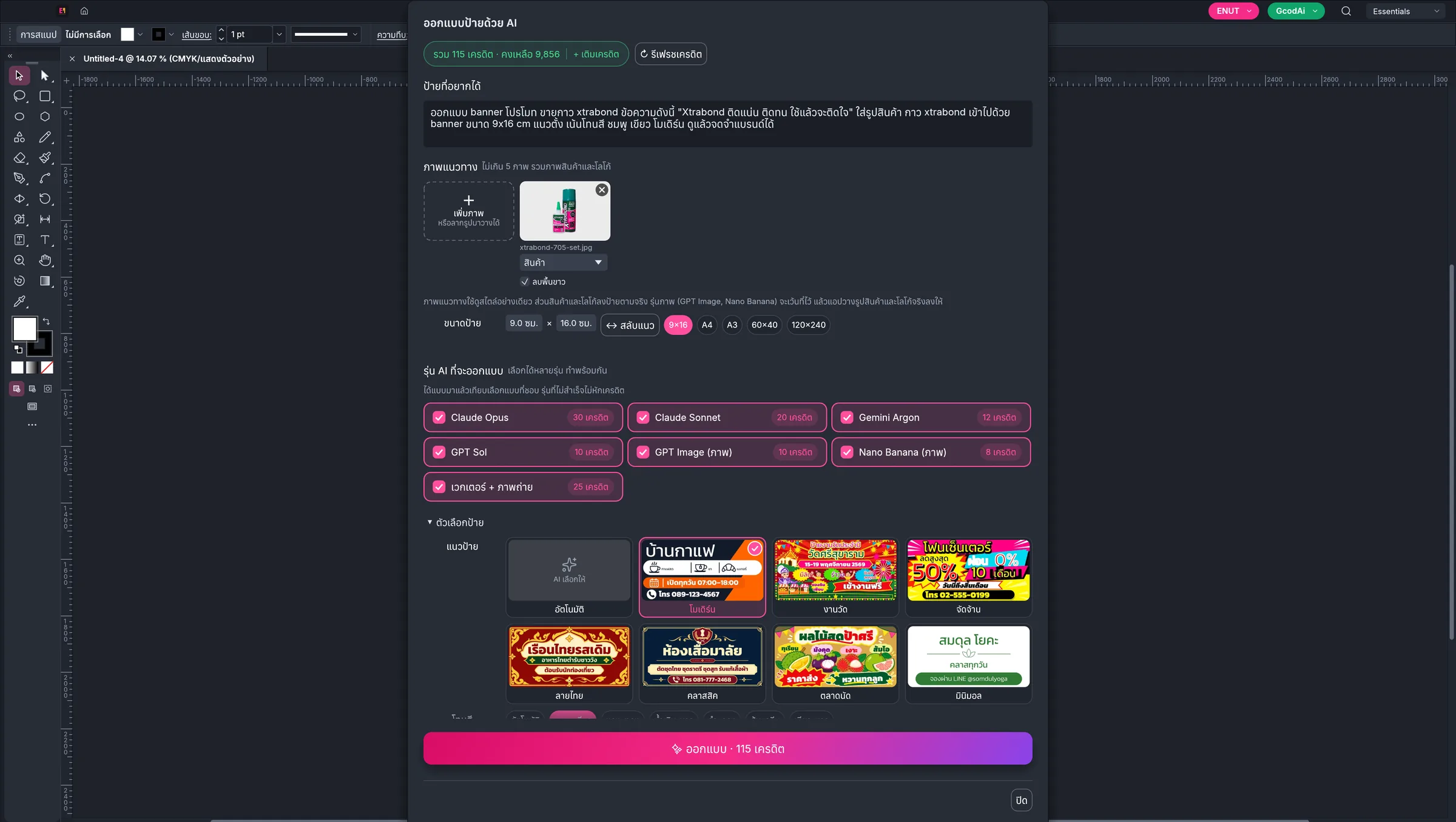
Open AI › AI Sign Design… and describe the sign you want in Thai. Attach product pictures or a logo, choose the size, style and AI models (you can pick several at once) and compare the designs. Click Use this and the sign is placed on your work at real size, with every piece still editable.
Tutorial clip 2:19 (narrated in Thai) Watch on YouTube
- What AI sign design can do
- Open the AI Sign Design window and check your credits
- Type the sign you want, and attach guide, product and logo pictures
- Set the sign size and pick several AI models at once
- Choose the style and colors
- Font and required text
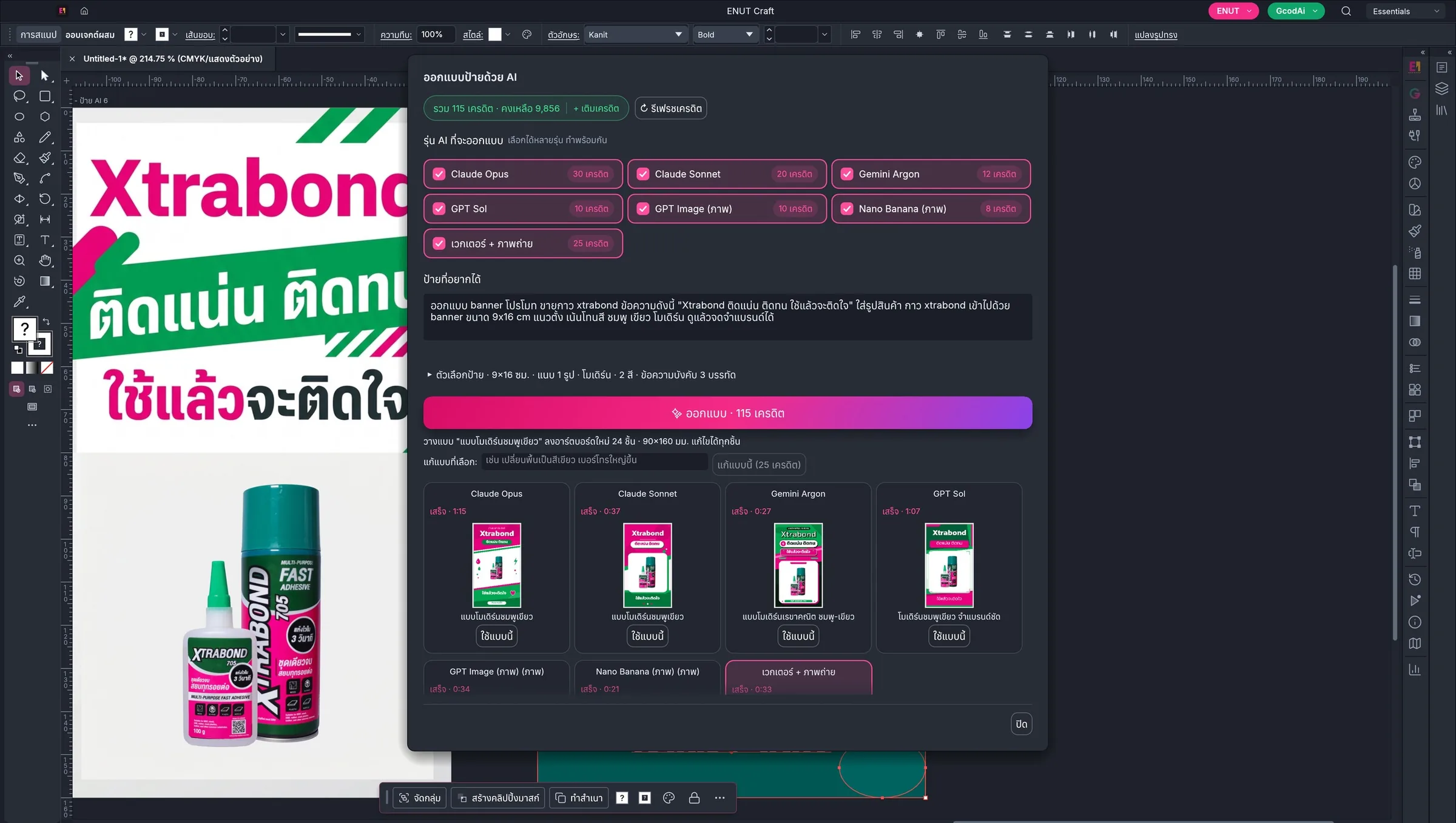
- Click Design, then wait for each model
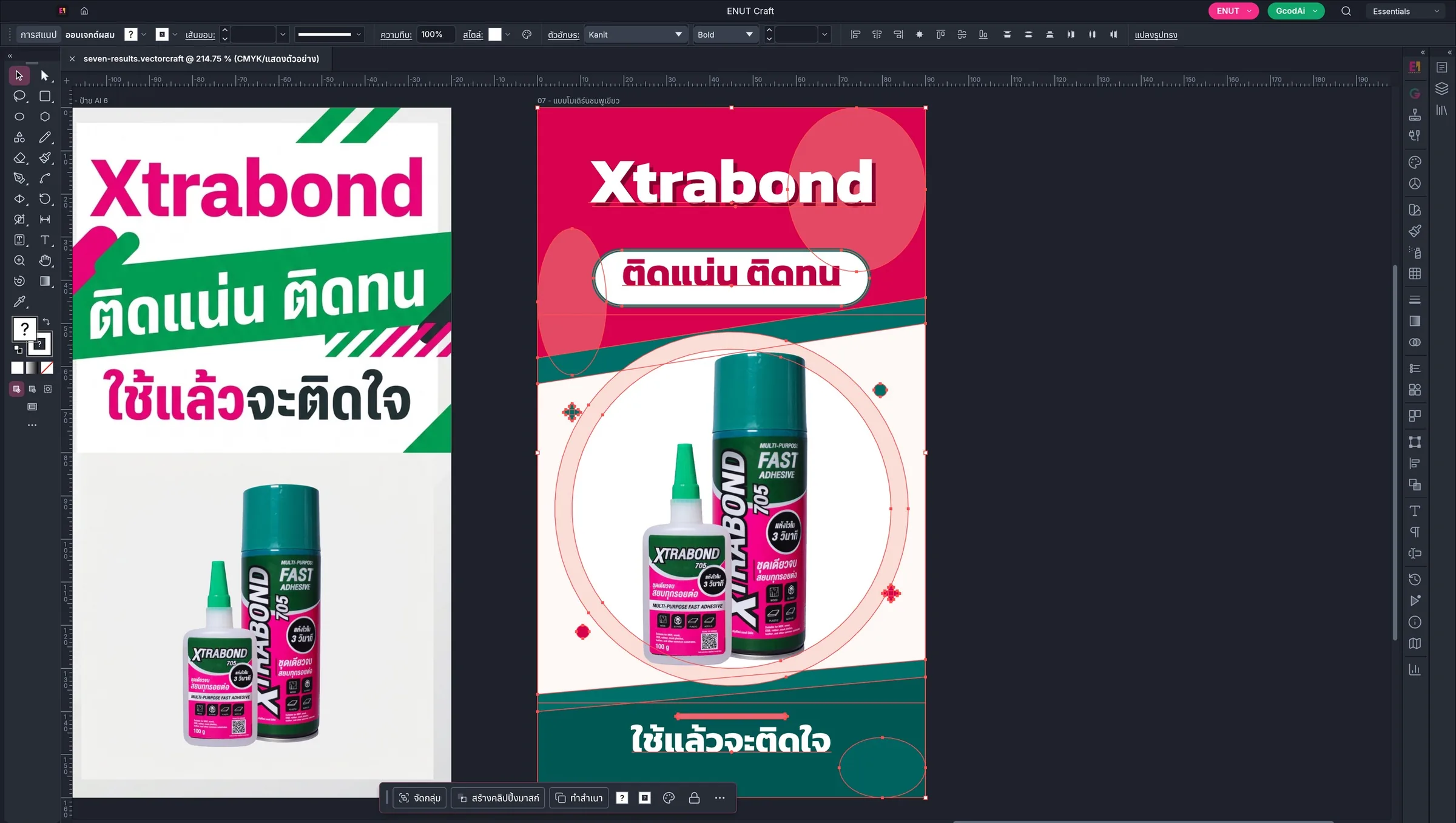
- Click Use this, then edit every piece
- Summary
Steps
Open AI › AI Sign Design… (it is also in the ENUT menu, in the ENUT panel under the AI design group, and on the home page).
Look at the top bar, Total N Credits · Left …. If it is not enough, click + Top up credits, and when you have topped up click Refresh credits.
Type in the The sign you want box, in Thai. Say what kind of sign it is, the text on the sign, the product and the colors you want.
If you have a product picture or logo, click Add a picture or drag the picture into the Guide pictures section (up to 5 pictures). Then set the picture type to Guide, Product or Logo. For product pictures and logos you can tick Take out the white.
Set the Size in centimeters, or click a ready-made size: 9×16, A4, A3, 60×40, 120×240. Click Swap Orientation to switch between portrait and landscape.
Under AI models you can tick several models and run them at the same time, for example Claude Opus, Claude Sonnet, Gemini Argon, GPT Sol, GPT Image (picture), Nano Banana (picture), Vector + Photo. Each model shows its credits.
To set things yourself, open Sign options: Style such as modern, temple sign, Thai pattern, minimal · Colours such as pink-green, or click + Add to put in your own colors · Font can stay on Auto (the AI picks) · Must say is where you put lines that must appear on the sign exactly, letter for letter.
Click Design · N Credits. Each model gets its own card. When one is finished it shows Done · m:ss with a preview picture.
Compare the designs, then click Use this under the one you like. The program places the sign on the artboard at real size. Text, shapes and pictures can all be edited piece by piece.
Screenshots in this lesson
Frequently asked questions
Do I lose credits if an AI model fails to make a design?
No. The card for that model says it did not succeed, and no credits are taken. Only the models that return a design are charged.
Can I keep editing a sign that came from AI?
Yes, every piece. Text can still be retyped, and shapes, colors and pictures are separate pieces on layers. See the lesson on editing AI sign designs piece by piece.
How do I make the text on the sign match exactly, letter for letter?
Open Sign options and put that line in the Must say box. The AI will use the text exactly as you typed it.