ClipLesson 19 of 61
Draft a logo from a sketch, and get logo drafts as vector lines
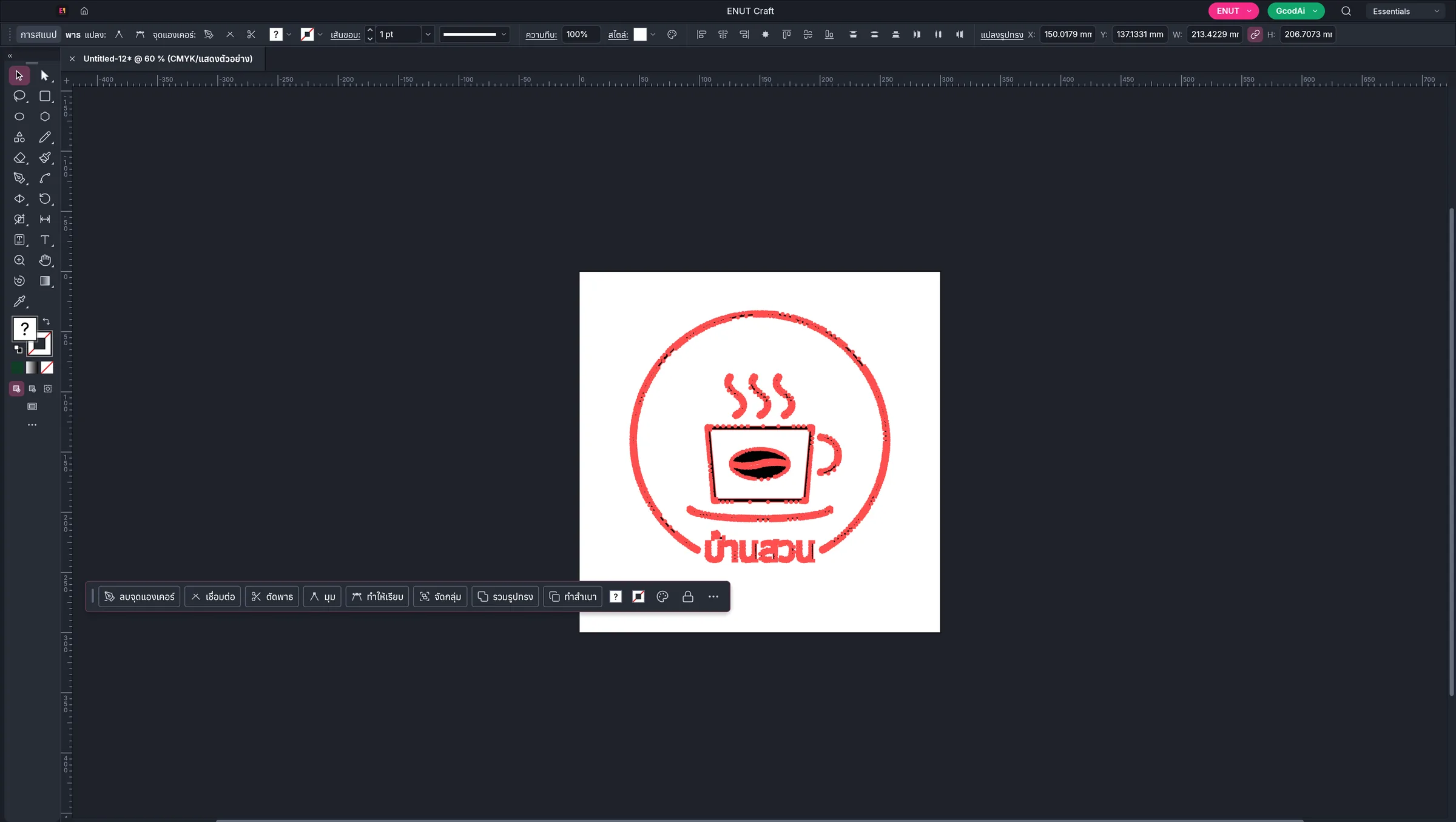
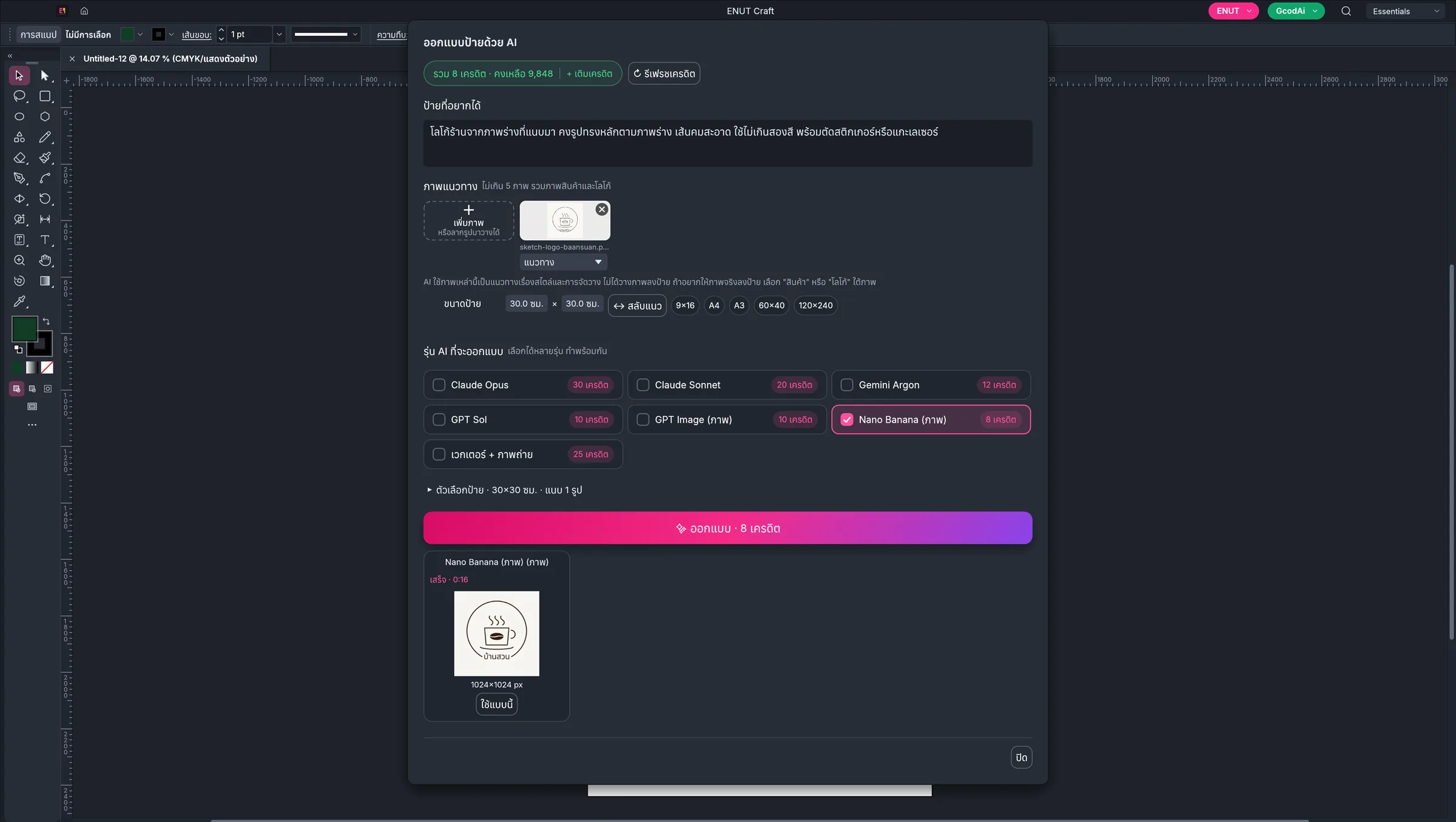
On the home page, click the Logo from a sketch sample, attach your sketch and click Design this sign with AI. You get several logo designs to choose from. The vector models give you lines you can edit right away. If you get a picture instead, convert it to lines with Object › Image Trace › Create.
 Clip in progress
The clip for this lesson is being made. For now, follow the screenshots and steps below. The clip will appear here when it's ready.
Steps
Click the house icon to go to Home. Under Start from a sample, click the Logo from a Sketch card. The program fills in the prompt and a size of 30 × 30 cm for you.
Attach your sketch in the Guide pictures box. You can drag the picture in.
Edit the text to fit your shop, such as the shop name and the colors you want.
Click ✨ Design this sign with AI. The AI Sign Design window opens. Choose the AI models, then click Design · N Credits.
Pick the design you like and click Use this.
If the design you picked is a picture, select it and use Object › Image Trace › Make to get vector lines for cutting or engraving.
Screenshots in this lesson