ScreenshotLesson 54 of 61
Rotary Axis, Turning Stock, and Two-Sided Machining
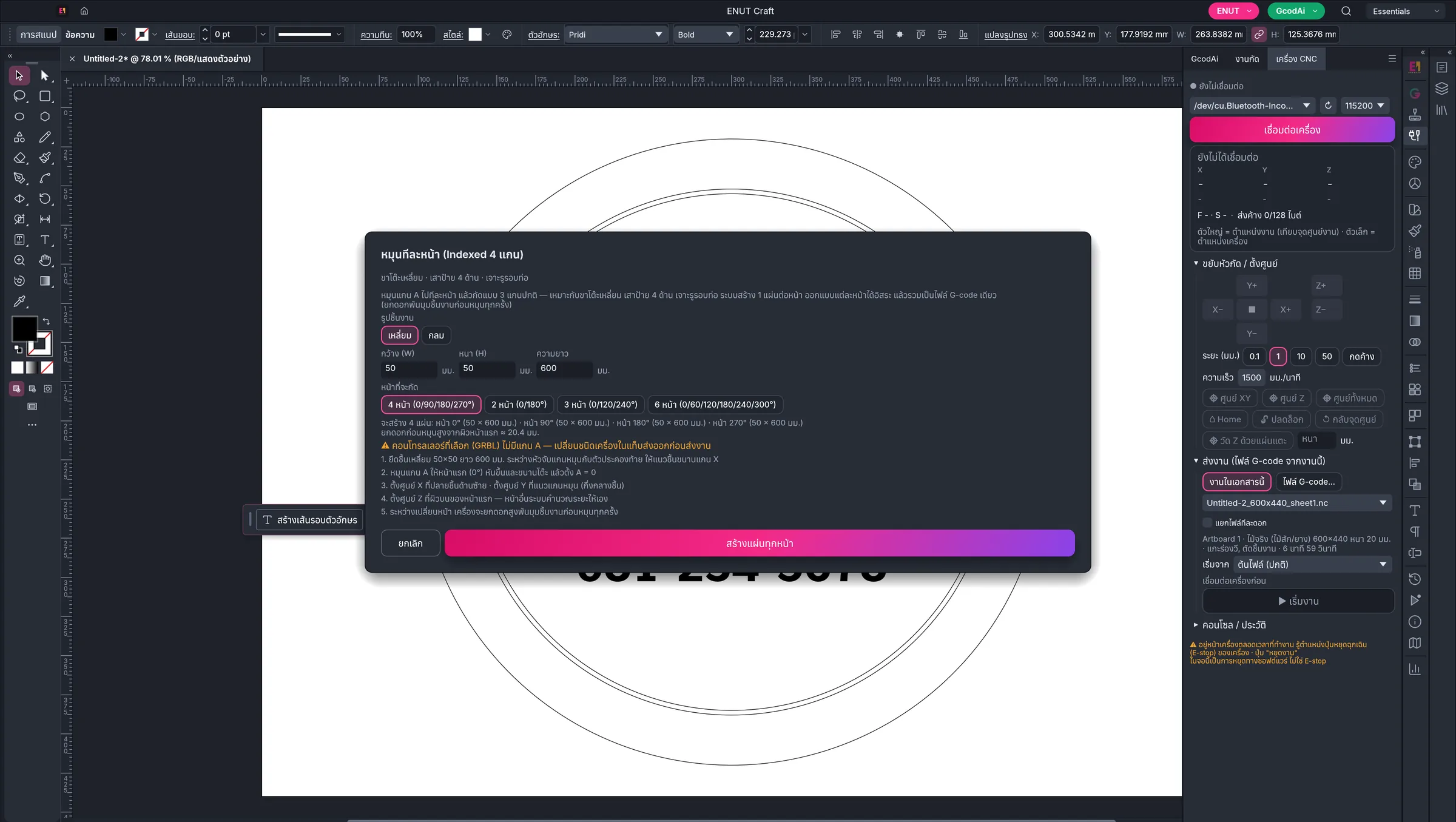
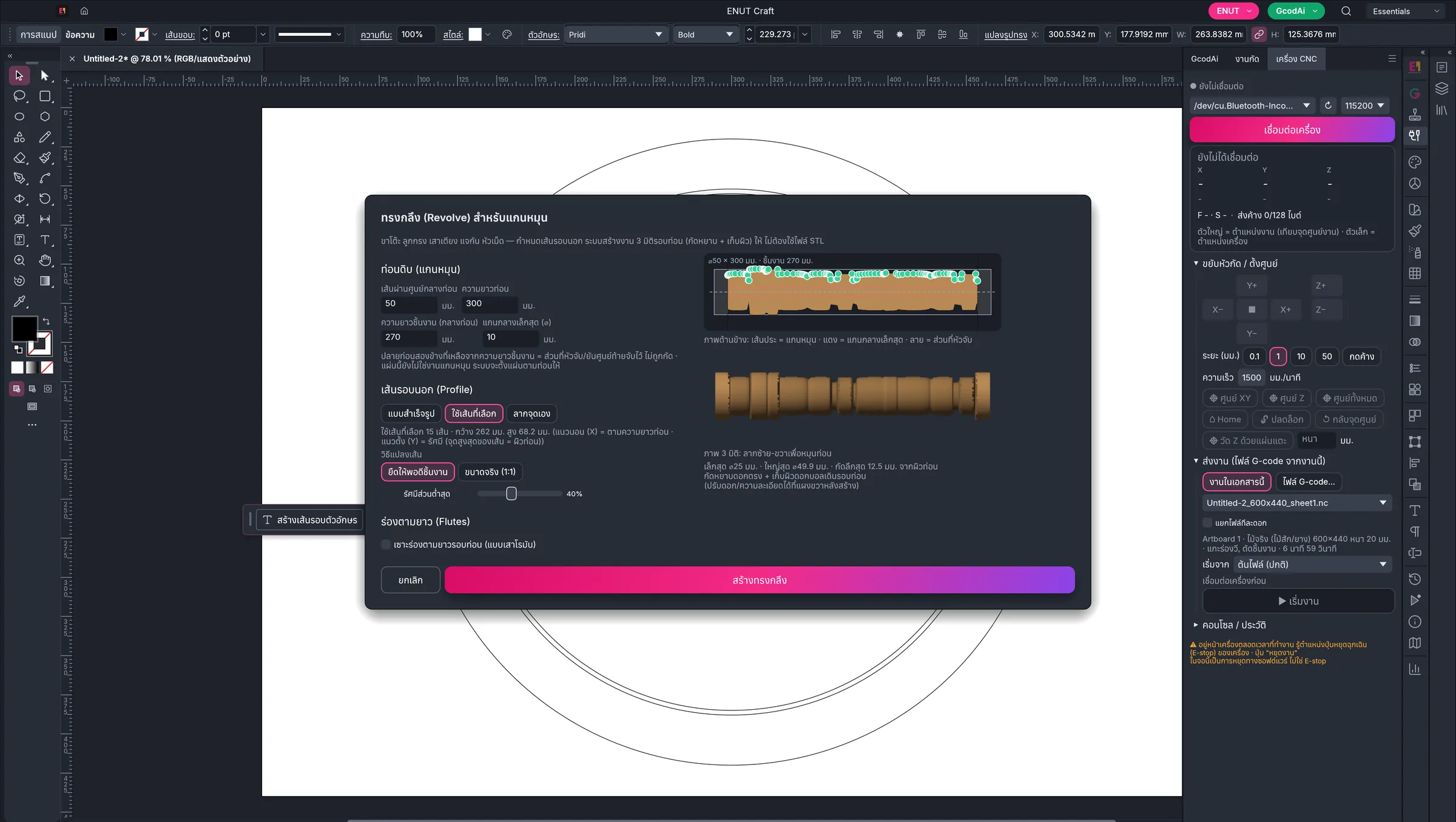
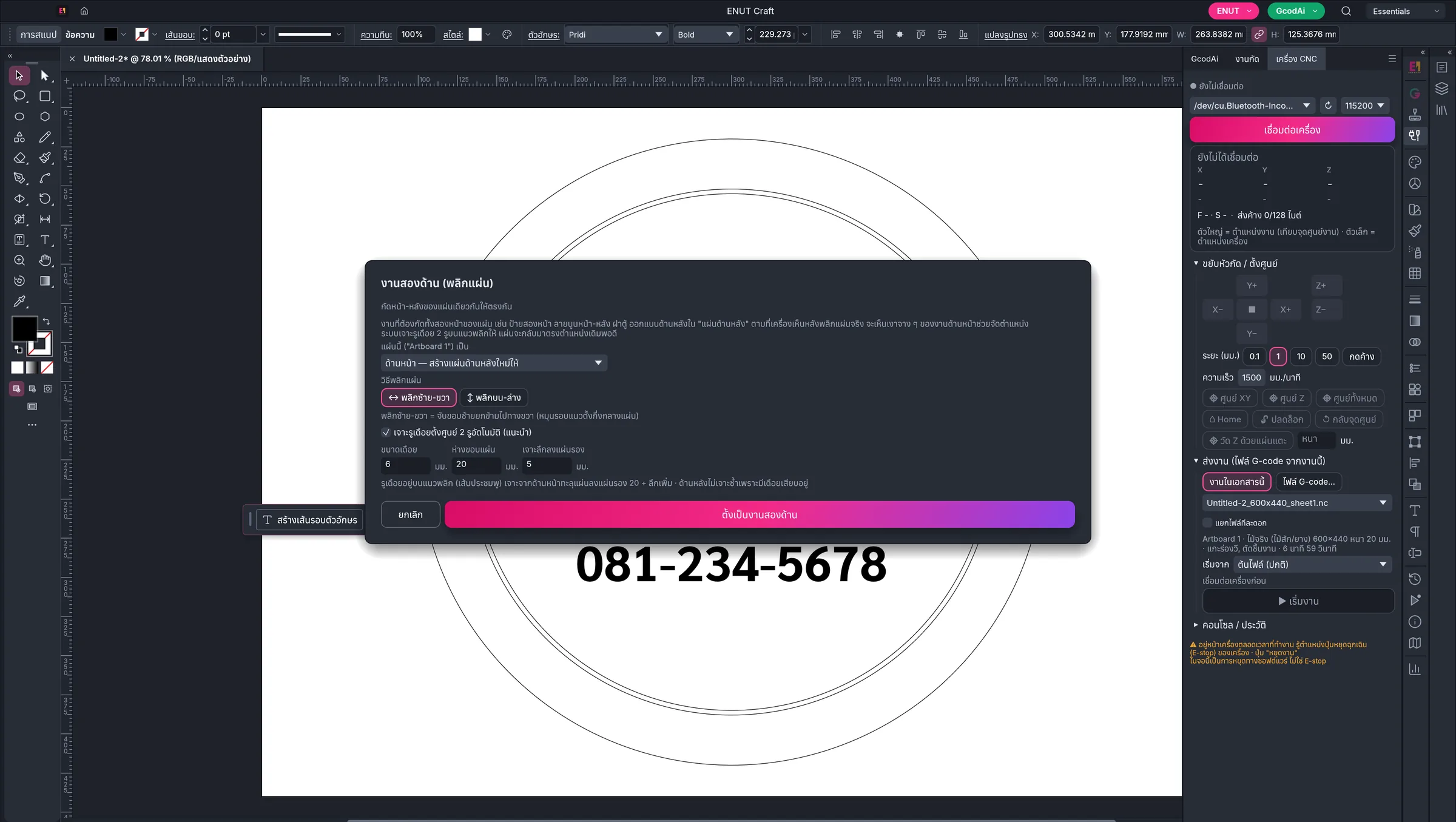
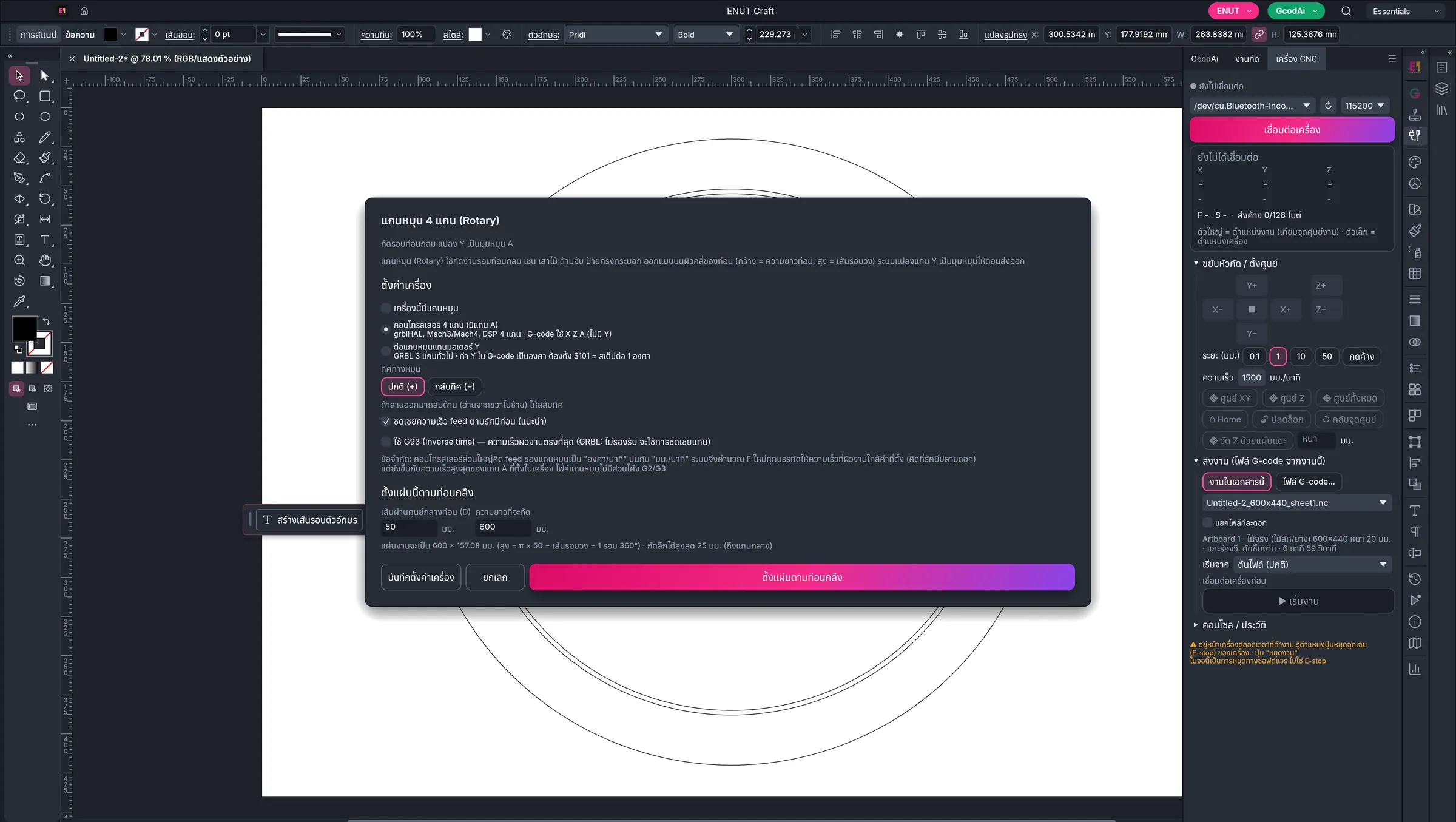
In the GcodAi panel, click Rotary / Two-Sided, then choose rotary work around the stock, turning one face at a time, turning a round stock, a 3D model around the stock, or two-sided machining. Two-sided jobs drill two registration dowel holes automatically.
Steps
Open the GcodAi Panel, go to the 3D work group, and click Rotary / Two-Sided
Choose the job: Rotary Work…, Turn One Face at a Time…, Turn Round Stock (Revolve)…, 3D Model Around Stock… or Two-Sided Machining…
Rotary work: click Set the sheet to the stock to set the work sheet to the size of the stock
Two-sided machining: choose How the sheet is flipped, left to right or top to bottom, and tick Drill two registration dowel holes automatically (recommended)
Click Make it two-sided, then set the machining for each side as usual
Screenshots in this lesson