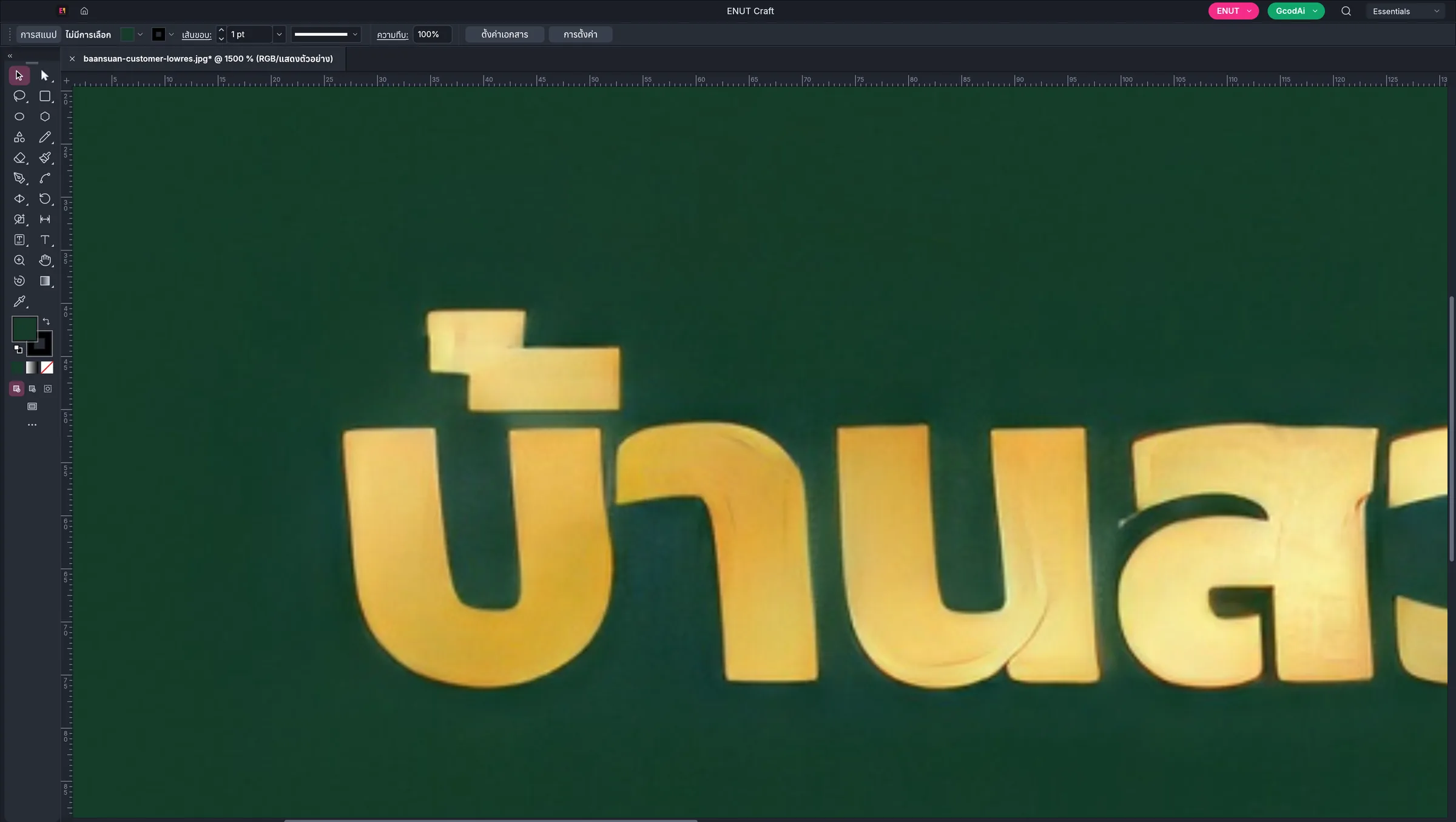
ScreenshotLesson 20 of 61
Upscale a picture 2, 4 or 6 times
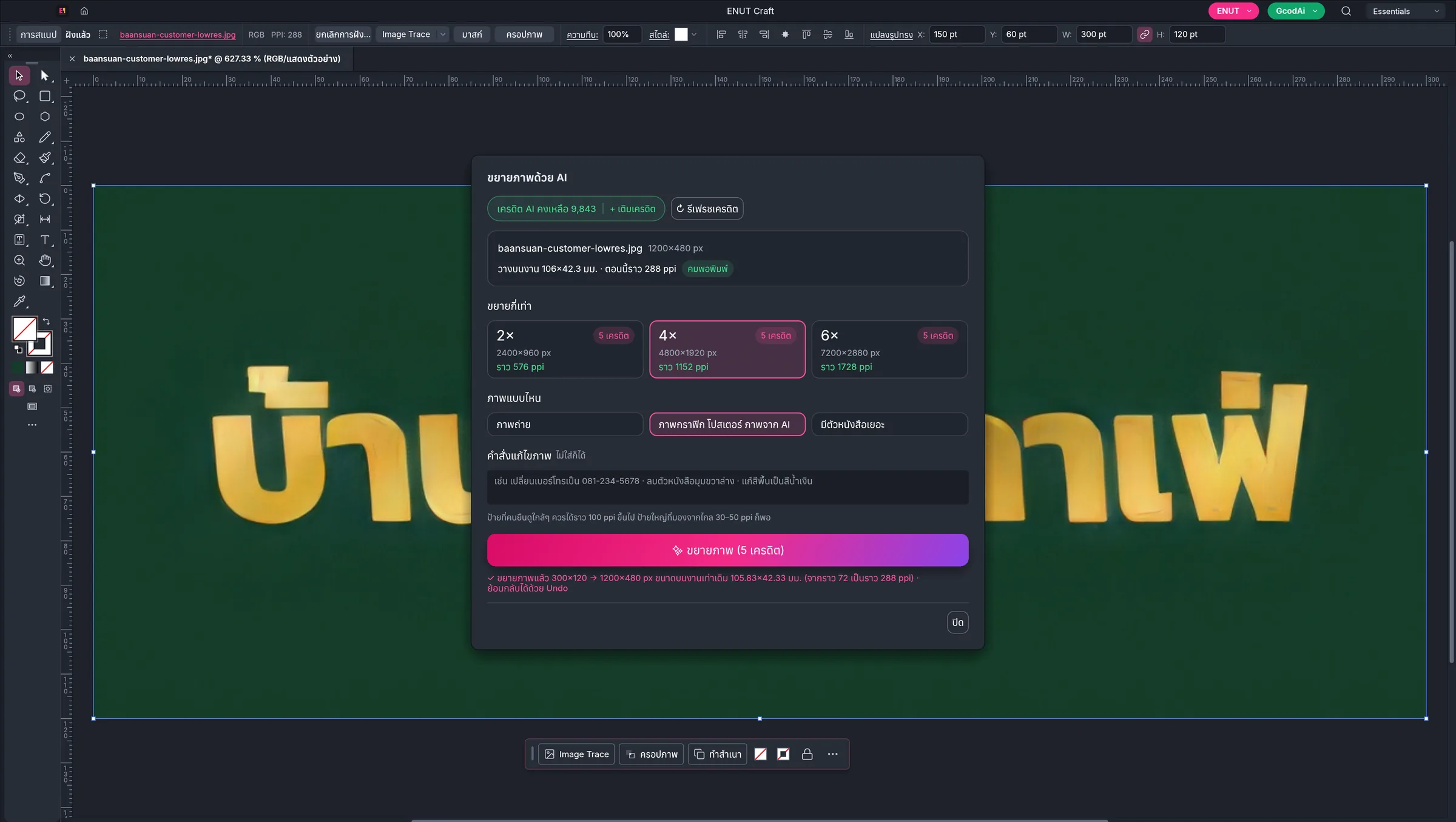
Select a picture in your work and use AI › AI Upscale…. Choose 2, 4 or 6 times bigger. The program tells you the resolution after upscaling in ppi. The new picture replaces the old one at the same position and size, and Undo brings the old one back.
Steps
Select a picture in your work (if no document is open, the program asks you to choose a picture file).
Open AI › AI Upscale….
Under How much bigger, choose 2×, 4× or 6×. Each option shows the pixel size, the approximate resolution in ppi, and the credits it uses.
Under What is the picture?, choose Photo, Graphics, poster, AI picture or Lots of text.
If you want the picture touched up too, type it in Edit instruction (optional, and it uses extra credits).
Click ✨ Upscale (N Credits) and wait a moment. The new picture replaces the old one.
Intro clip for ENUT UPSCALE, upscaling pictures on the web at enut.pro/upscale
Clip 0:52 (narrated in Thai) Watch on YouTube
ENUT UPSCALE review clip in podcast style, 6 jobs on one website
Clip 1:36 (narrated in Thai) Watch on YouTube
Screenshots in this lesson