
ClipLesson 26 of 61
Nest parts on a sheet, keep offcuts and make sheet cut lines
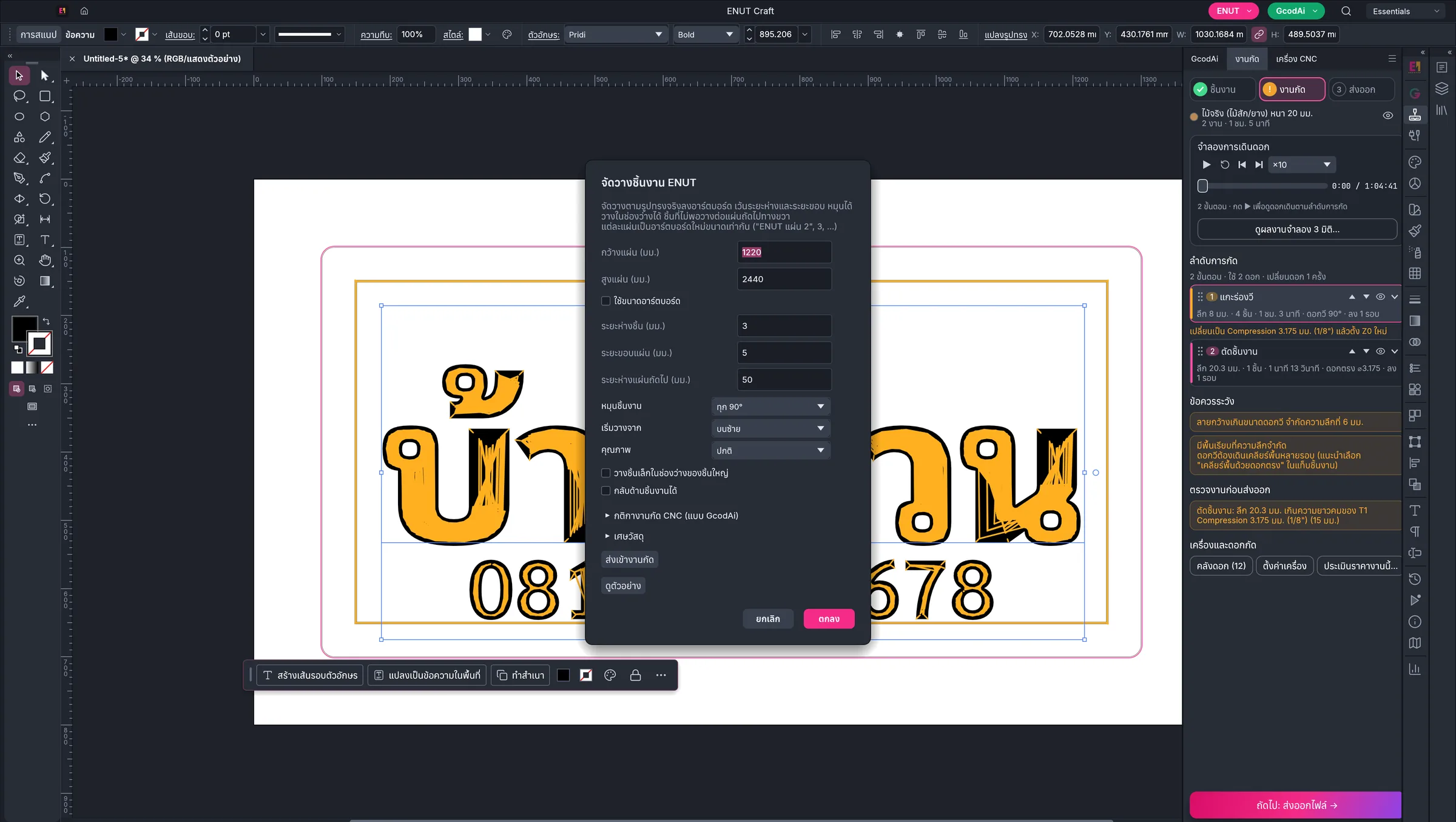
Select your parts and use ENUT › Nesting…. Enter the sheet size, the gap and the rotation, click Preview, then OK. Parts that do not fit start a new sheet by themselves. You can fill gaps with offcut shapes, and make a cut line across the sheet so what is left over is one rectangle.
 Clip in progress
The clip for this lesson is being made. For now, follow the screenshots and steps below. The clip will appear here when it's ready.
Steps
Select all the letters or parts you want to cut.
Open ENUT › Nesting….
Enter the Sheet width (mm) and Sheet height (mm), or tick Use the artboard's size. Then enter the Gap between pieces (mm) and the Sheet margin (mm).
Choose Rotation, for example every 90°, every 45° or every 15°. Tick Place small parts in the holes of big ones and Parts may be mirrored if you want them.
Open Keep offcuts and cut off the rest: tick Cut line across the sheet: what is left is one rectangle (blue) and add offcut shapes with + Circle, + Rectangle (set the Angle to round the corners), + Ellipse or + Selected Shape. Then enter the Count (0 = as many as fit).
Click Preview, check it, then click OK. Parts that are left over go on the next sheet, one artboard per sheet.